Getting Started
Welcome to the All On Board! Mod Kit documentation. Here we cover all the basics to create your own games for All On Board!, including how to publish them on Mod.io.
If you are interested in diving deeper into the more advanced features of the Mod Kit, visit the Technical Docs.
This page will help you get started with the All On Board! Mod Kit.
Setup
Step 1. Install Unreal Engine 5.8
You’ll need to have an Epic Games account. If you don’t have one, go to https://www.epicgames.com/site/home
Once your account has been set up, proceed to download the Epic Games Launcher: https://store.epicgames.com/download
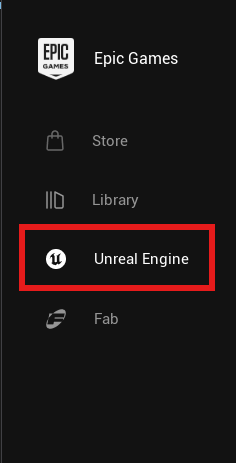
After logging in to your account in Epic Games Launcher, go to the Unreal Engine tab on the left side of the interface.
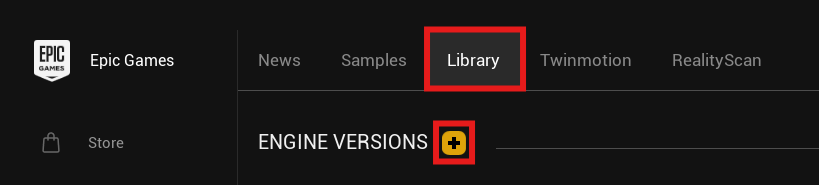
While on this tab, navigate to the Library tab. Once there, press the “+” button next to the Engine Versions text.
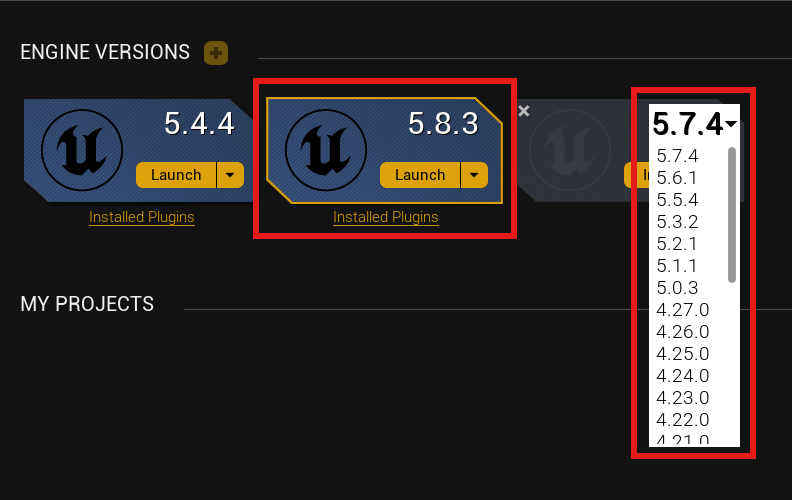
Once that’s done, a new version of the engine will appear on the Engine Versions dashboard. Select the Version by clicking the button located on the upper right side of the installation button, and select the 5.8 version. If you have already installed Unreal Engine 5.8 in any of its previous iterations, that version won’t appear in the drop-down options.
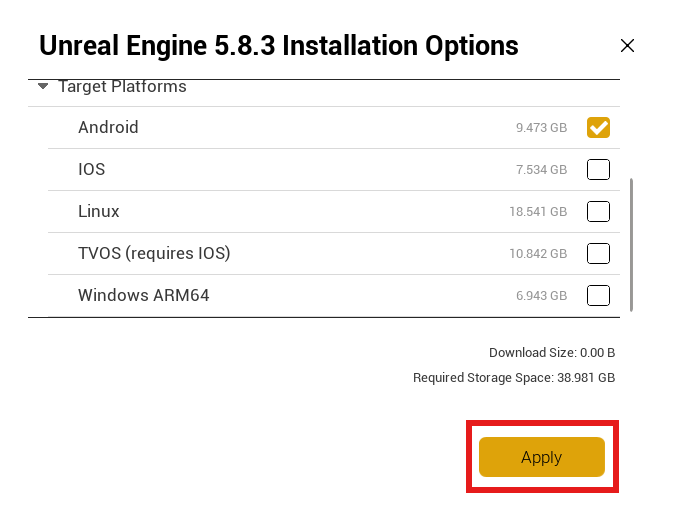
Click on the Install button. Once the installation interface has been opened, select the Options button. Make sure you have checked at least:
- Engine Sources
- Target Platform → Android
Select Apply. Then proceed with the installation. The Epic Games Launcher will automatically install everything needed for your selected Engine version.
Step 2. Download the Mod Kit
To download the All On Board! Mod Kit, go to Releases and download the latest version.
Click on the Mod Kit link and download the ZIP. This will start the process of downloading the All On Board! Mod Kit.
Unzip the files on your PC and save them. It’s recommended to save these files somewhere that’s not the Desktop, as these are large files. We suggest using the same folder as where you’d usually save your regular Unreal Engine projects.
Opening the project
Step 1. Initialize Unreal Engine 5.8
If you’ve never used Unreal Engine 5.8 before, you’ll need to start a blank project first so that the engine compiles. Otherwise, you won’t be able to open the AllOnBoardModKit.uproject file.
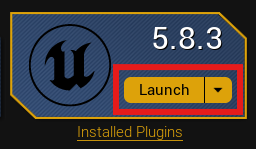
To initialize the Engine, go to your Epic Games Launcher and go to Unreal Engine → Library. Here, select the Launch option on your UE 5.8 installation.
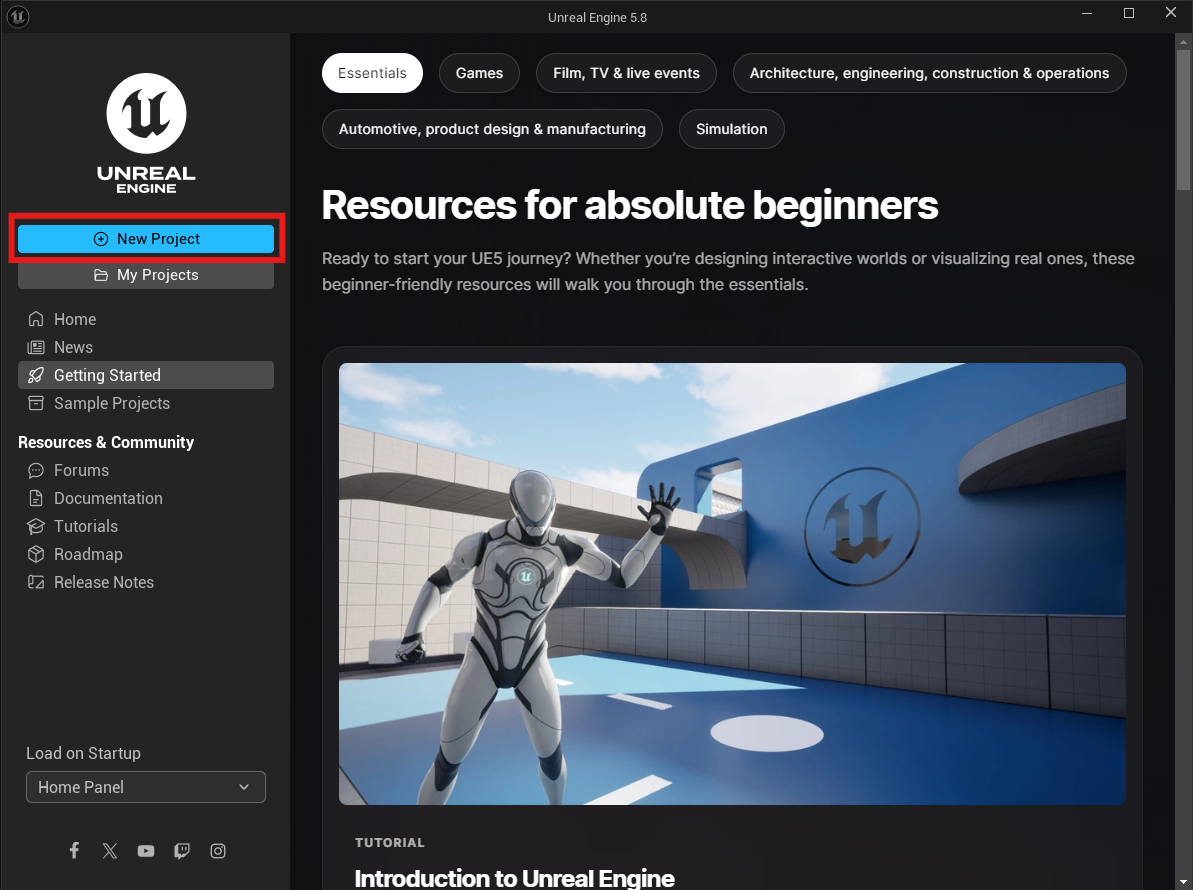
Once the Unreal Project Browser has been opened, select New Project, then Blank project, and click on Create.
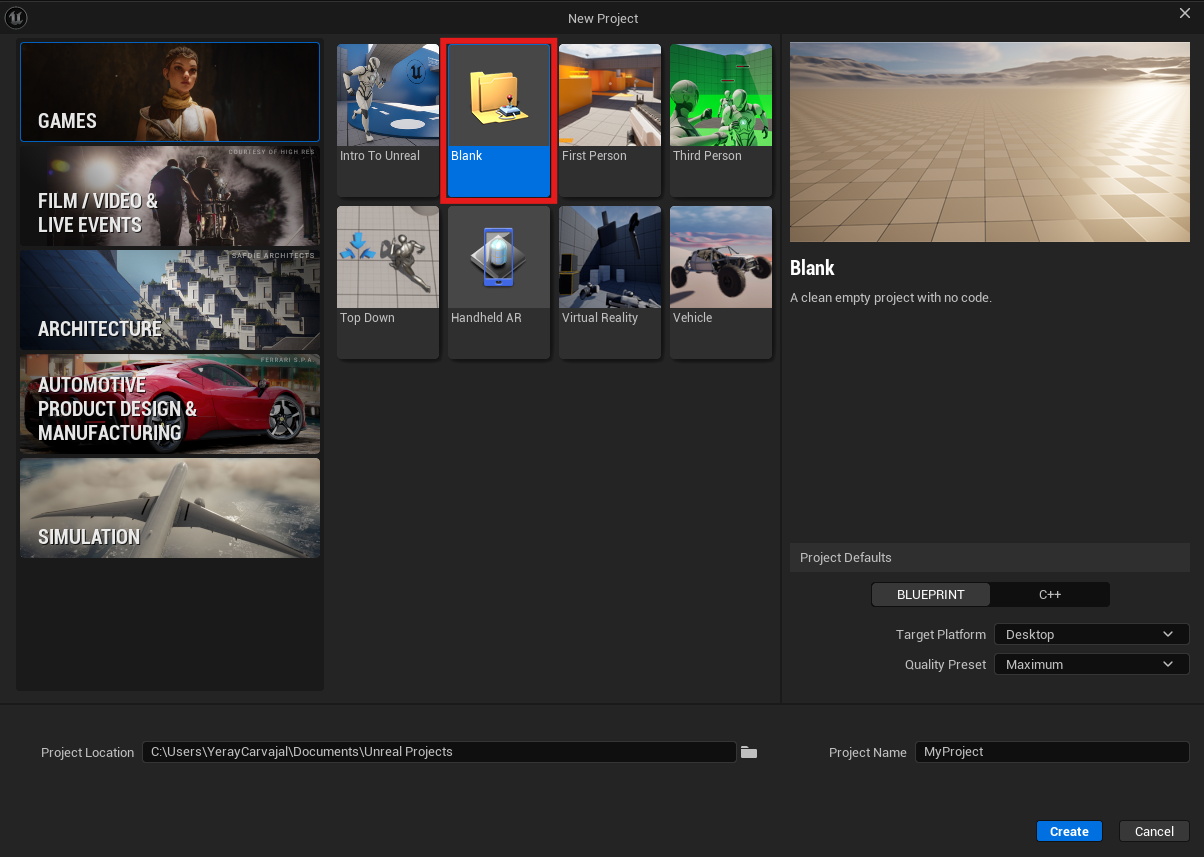
After a while, Unreal Engine 5.8 will open automatically, showing an empty scene. Close the project and proceed to the next step.
Step 2. Open AllOnBoardModKit.uproject
Open the All On Board! Mod Kit folder and double-click on the AllOnBoardModKit.uproject file. Unreal Engine will start loading the project.
After this step is completed, you can delete the blank project created in the previous step if you wish to.
Step 3. Create your first Mod
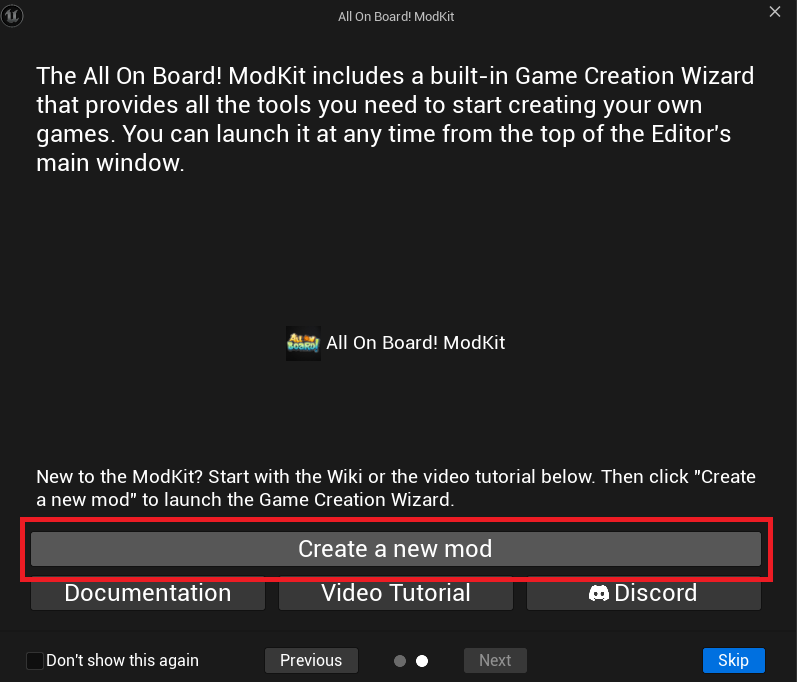
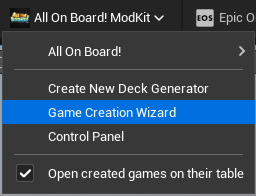
Once you are in Unreal Engine, you can create your first game. Click Create a New Mod in the Welcome window, or go to All On Board! Mod Kit → Control Panel.
Troubleshooting
-
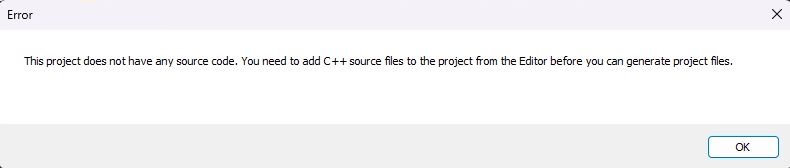
I cannot open the .uproject inside the All On Board! Mod Kit folder; it says the project has no source code. Solution: you need to open a blank project in Unreal Engine 5.8 so that the engine initializes and compiles. Create an empty project before opening the Mod Kit.
-
I downloaded a new version of the Mod Kit after using a previous one, and an error tells me that the project does not have source code. Solution: double-click the AllOnBoardModKit.uproject again, as the C++ files will be created automatically after closing the error dialog.
-
I cannot unzip all the files in the Mod Kit; an error occurs at some point. Solution: Use 7-Zip instead of the standard Windows utility.