Game Element Proxy
Usually, Game Elements are created by declaring them on a Data Table called GameSetupGeneral, but you can nest the creation of a Game Element inside another Game Element by adding a Proxy Component to the former. This way, you can organize your Game Elements in a more flexible way and make the location of some elements relative to others.
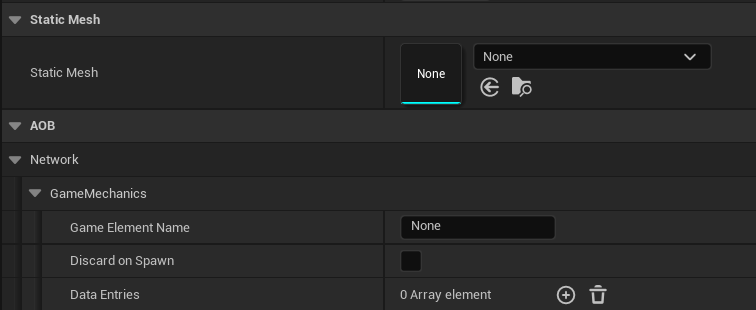
To create a Game Element this way, simply add the component to your Blueprint and fill in the parameter “Game Element Name”.
Additionally, you can give it a visual representation by choosing a Static Mesh, and set some Data Entries. If you set a Static Mesh, we recommend marking the flag “Discard On Spawn”.
Available Proxy Types
There are three proxy component types, each differing in how the spawned child element is related to the parent actor after spawning:
-
Game Element Proxy Component - Spawns the child element independently. No attachment to the parent after spawn.
-
Game Element Proxy Component Attach To Actor - Spawns the child and attaches it to the parent actor.
-
Game Element Proxy Component Attach To Slot - Spawns the child and snaps it into a Slot on the parent actor.
To use this component, you must fill the parameter “Attaching Slot Tag”, and you must have a slot using that tag.
