Pool Creation Wizard
This tool helps you create bags for All On Board!
If you want to create a simple pool step-by-step, go here:
TODO (from Notion): link pending (the sentence has no link target in the source).
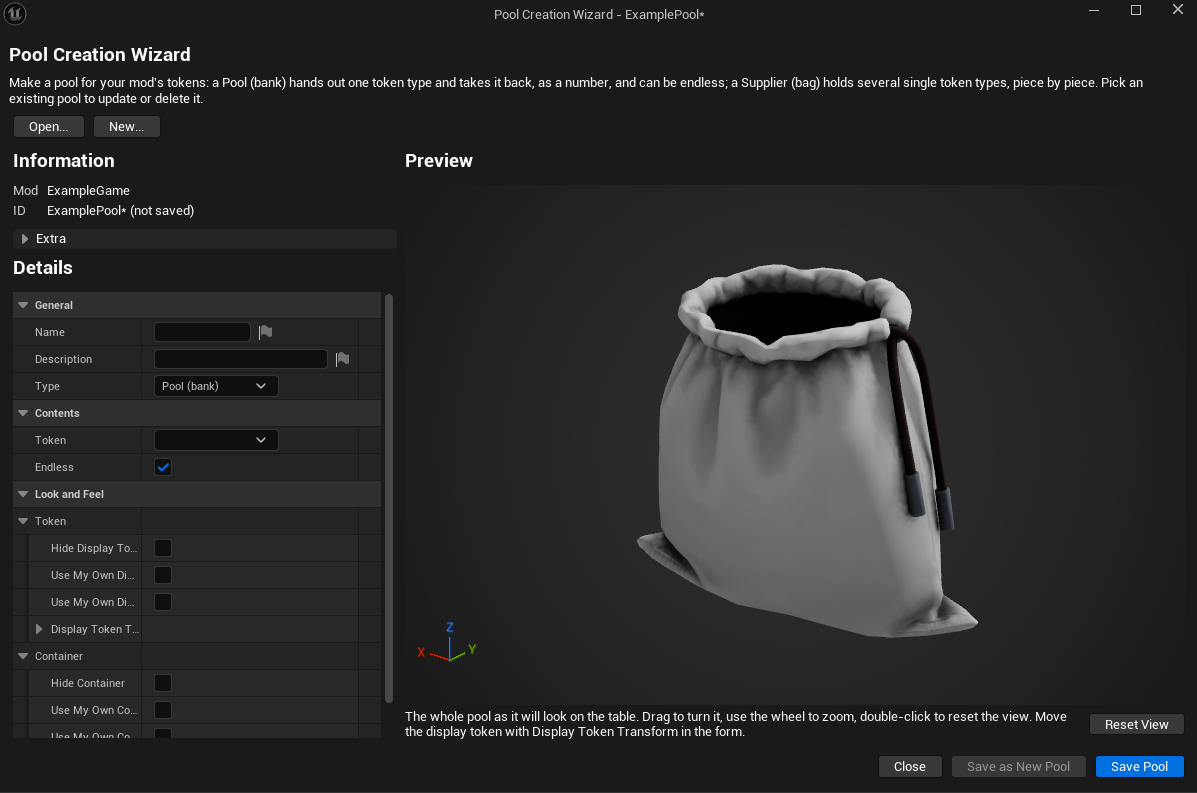
To open the Pool Creation Wizard click it on the Alll On Board! Mod Kit ToolBar.
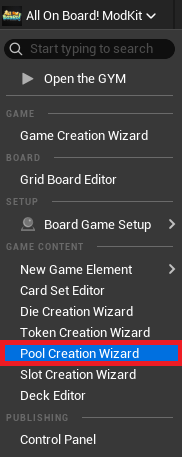
In the following window, you can choose whether to create a new pool or edit an existing one.
If you click New Pool, you will need to select the mod you are creating the token for and enter its ID. You can also choose to create it based on an existing token.
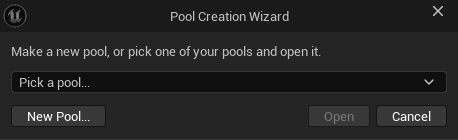
Once you open the Pool Creation Wizard, you will find the following sections:
Information
- Mod: The mod your pool belongs to.
- ID: The Game Element ID of your pool. This is the name you will use to find it in the Game Setup and reference it in Blueprints whenever you need to identify or use this Game Element.
- Extra: In this section, you can find the folder path where your pool is stored, its Game Element Data Asset, its Blueprint (in case you want to add custom functionality or programming), and the pool's Parent Class.
Details
General
- Name: Enter the name of your pool.
- Description: Add a description of your pool. For example: "Pool for Player Three".
- Type: Select between bank pool or suppplier pool.
- Pool (Bank): A bank containing a single type of token, with its quantity tracked as a number. It can be set to be unlimited. Counter tokens are taken from the pool several at a time.
- Supplier (Bag): A bag containing multiple individual token types, with each piece tracked by name and distributed in order.
Contents
- Token/Tokens in the Bag: Defines which token types can be stored in the pool.
- Shuffle at Start: If enabled, the contents of the bag will be shuffled before the game starts.
- Maximum Pieces: Sets the maximum number of pieces the bag can hold. If the bag is full, any additional pieces dropped into it will not be accepted. Set to 0 for no limit.
- Endless: If enabled, the pool will have an unlimited number of tokens.
Look and Feel
In the Token section, you can configure the appearance of the token displayed on top of the bag using the following fields:
- Hide Display Token: If enabled, the token displayed on top of the bag will not be visible.
- Use My Own Display Token Mesh: If enabled, you can select a custom mesh for the token displayed on top of the bag.
- Use My Own Display Token Material: If enabled, you can select a custom material for the token displayed on top of the bag.
- Display Token Transform: Allows you to adjust the position, rotation, and scale of the mesh displayed on top of the bag.
In the Container section, you can configure the appearance of your bag using the following fields:
- Hide Container: If enabled, the bag mesh will not be visible in the game.
- Use My Own Container Mesh: If enabled, you can select a custom mesh for your bag.
- Use My Own Container Material: If enabled, you can select a custom material for your bag.
- Use My Own Bag Colors: If enabled, you can customize the bag's colours:
- Bag Main Color: Sets the colour of the bag.
- Bag Second Color: Sets the colour of the bag's drawstring.
- Bag Third Color: Sets the colour of the bag's grommet.
Preview
In this section, you can preview your pool. You can also find an additional button in the bottom-right corner of the window.
- Reset View: Click this button to reset the pool's preview camera.
Finally, at the bottom of the window, you will find the following buttons:
- Close: Closes the Pool Creation Wizard.
- Save as New Pool: Saves the current pool configuration as a new pool, keeping the original unchanged.
- Modify Pool / Save Pool: Saves the pool or applies the changes you have made to the existing pool.