Bags
The bag or pool is a game element designed to store and dispense a quantity of GameElements, typically tokens. Players can interact with it to extract or deposit elements, and the pool keeps track of the total amount stored.
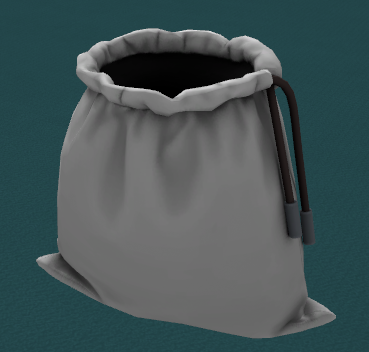
This guide explains how to create and configure bags using the All On Board! Mod Kit. The following is a list of things you can do with bags in All On Board!:
Create a pool
Step 1 - Open the Pool Creation Wizard
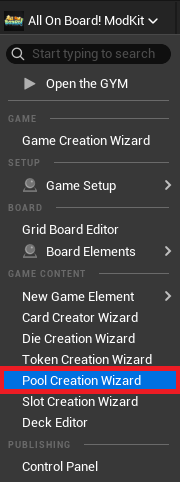
First, open the Pool Creation Wizard click it on the Alll On Board! Mod Kit ToolBar.
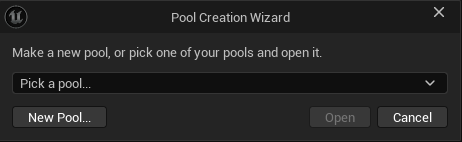
In the following window, click New Pool.
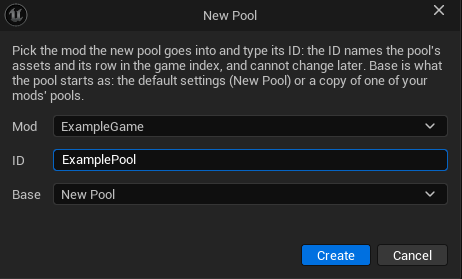
Next, select the mod you want to create your pool for and enter an ID. This is the name you will use to find your pool in the Game Setup blueprint.
You can also choose whether to create the pool from scratch or use an existing pool as a base.
Once you have configured these options, click Create.
Step 2 - Configure your pool
First, enter the name and description of your pool. This information will be displayed when someone opens the pool's Smart Glance.
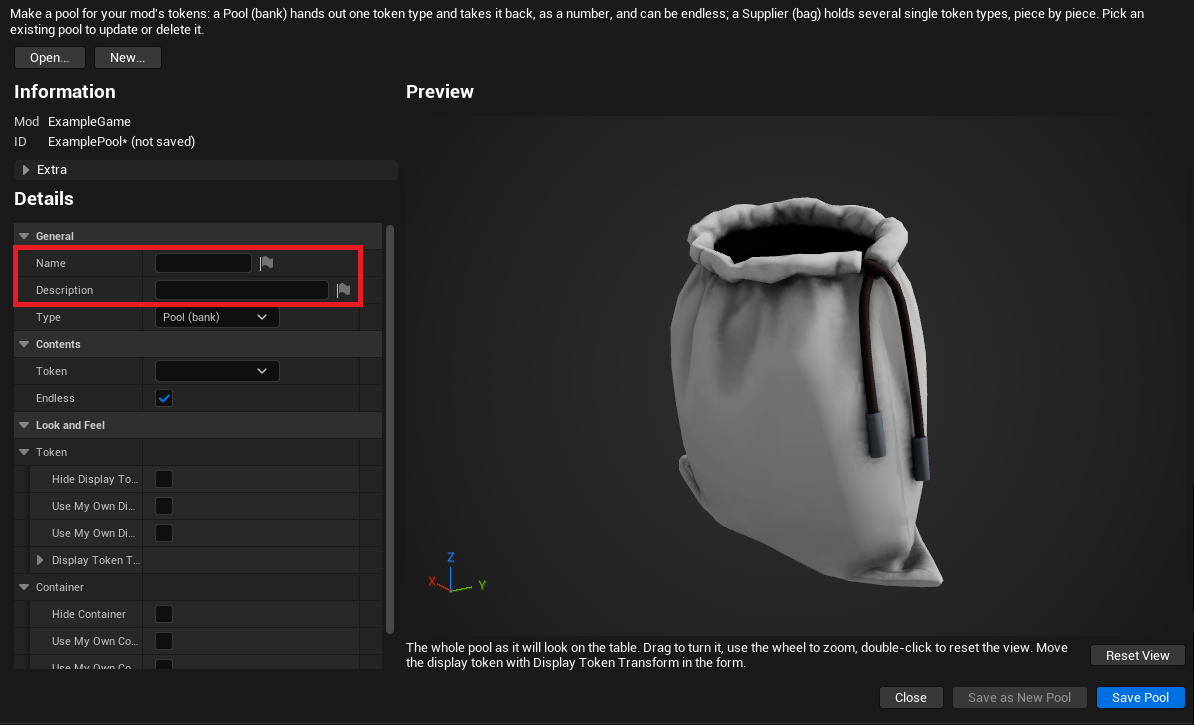
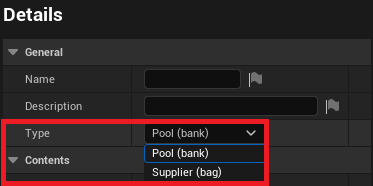
Next, choose the type of pool. Select Pool (Bank) if you want to store a single token type with a quantity that can be unlimited, or Supplier (Bag) if you want to store multiple token types, each tracked individually by name and distributed in order.
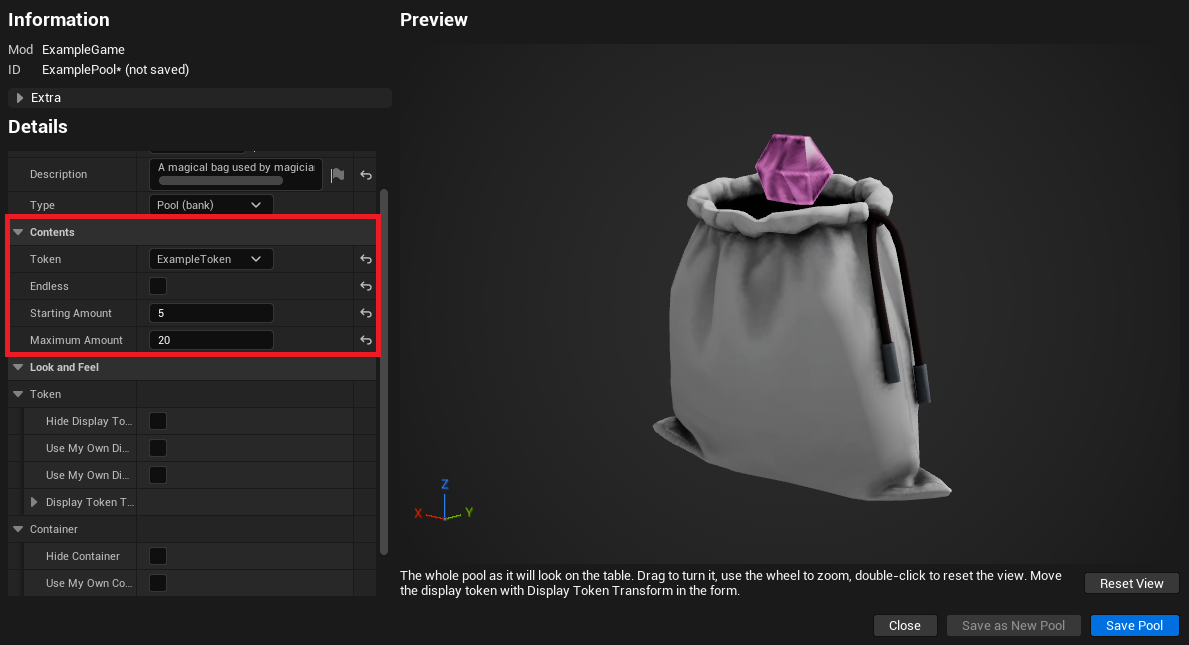
If you select Pool (Bank), you will need to choose the token you want to store in your bag. Then, enable Endless if you want an unlimited supply of tokens. Otherwise, set the Starting Pieces and Maximum Pieces to define the initial number of tokens in the bag and the maximum amount it can hold.
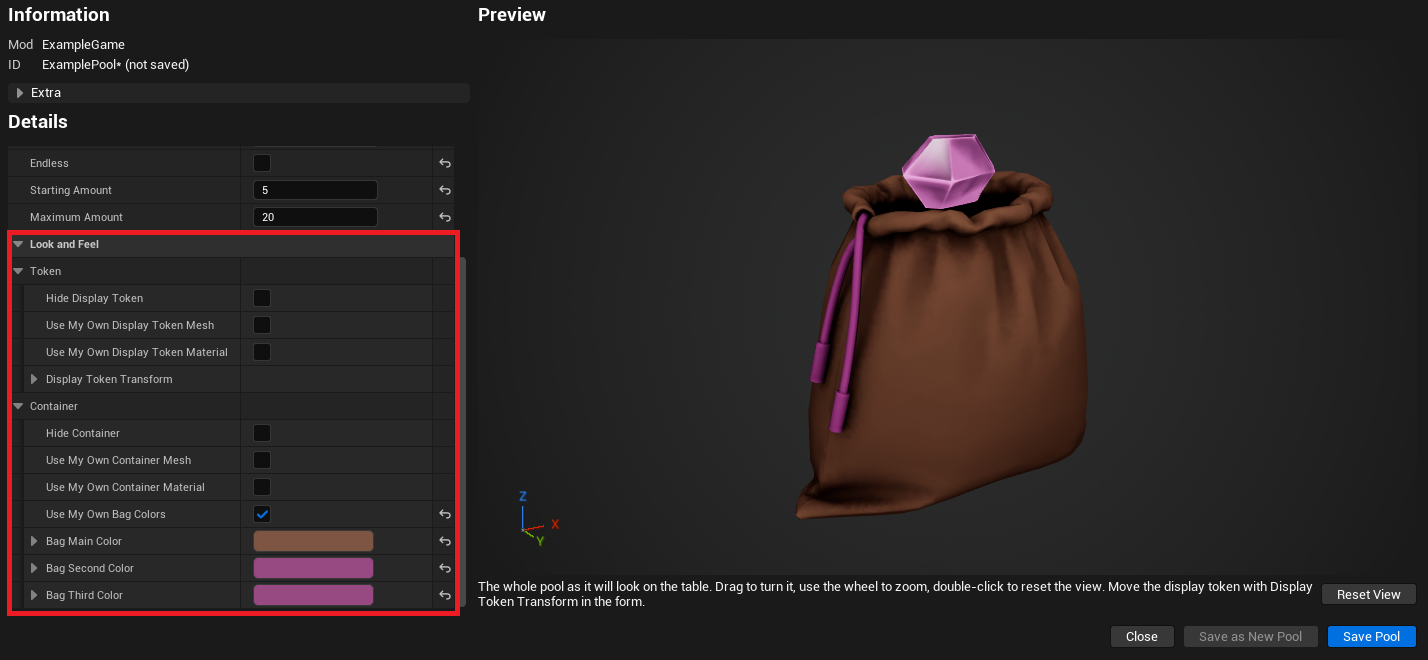
Next, you can customize the appearance of both the bag and the display token, or choose to hide them. For example, if you enable Use My Own Bag Colors, you can customize the default bag colours.
Finally, once you have configured all your tokens, click Save Pool to save your changes.
If you want to learn more about the Pool Creation Wizard settings, check out this guide: Pool Creation Wizard
If you want to place your counter list on the table, go to this page: