Table
The table is the main surface where players place and interact with the Game Elements used in your game. You can customize its appearance by changing its mesh to match your game's theme and visual style.
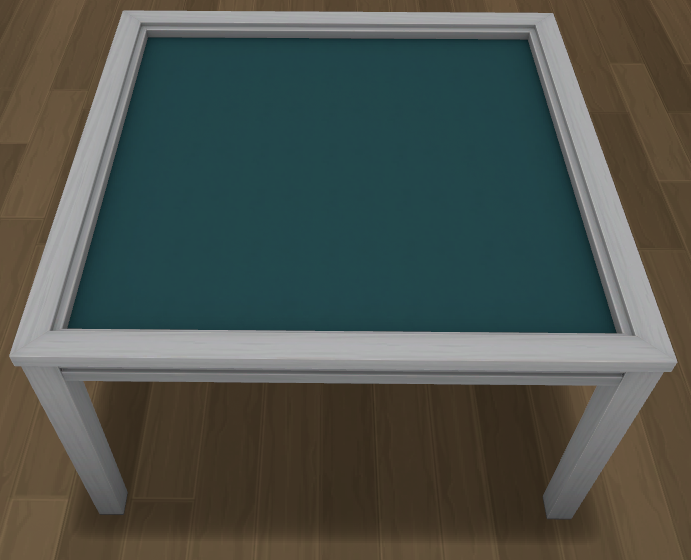
This guide explains how to change the table's appearance in the All On Board! ModKit. If you created your game using the Game Creation Wizard, a table will already be included in your game.
Change the Table
Step 1 – Change the Table Mesh
There are two ways to change the table's mesh in the ModKit. Choose the method you prefer:
Using the DeployTool Blueprint
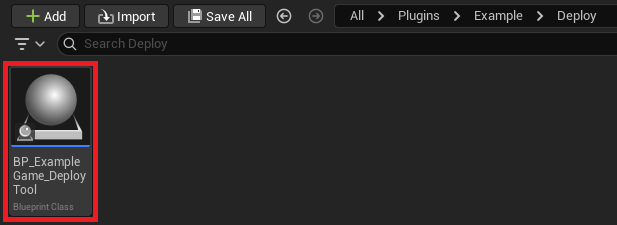
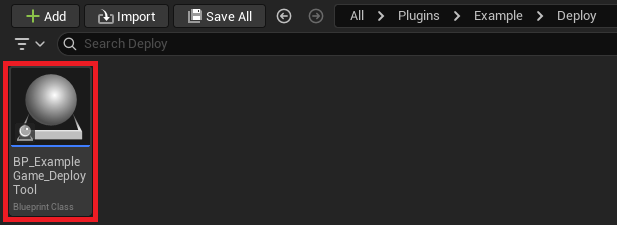
First, open your DeployTool Blueprint, which you can find in your game’s Deploy folder.
Then, select the Table Component and enable the Override Preview Mesh option in the Details panel on the right.
The following image shows a DeployTool Blueprint from a game configured for a single player, so your DeployTool Blueprint may look different.
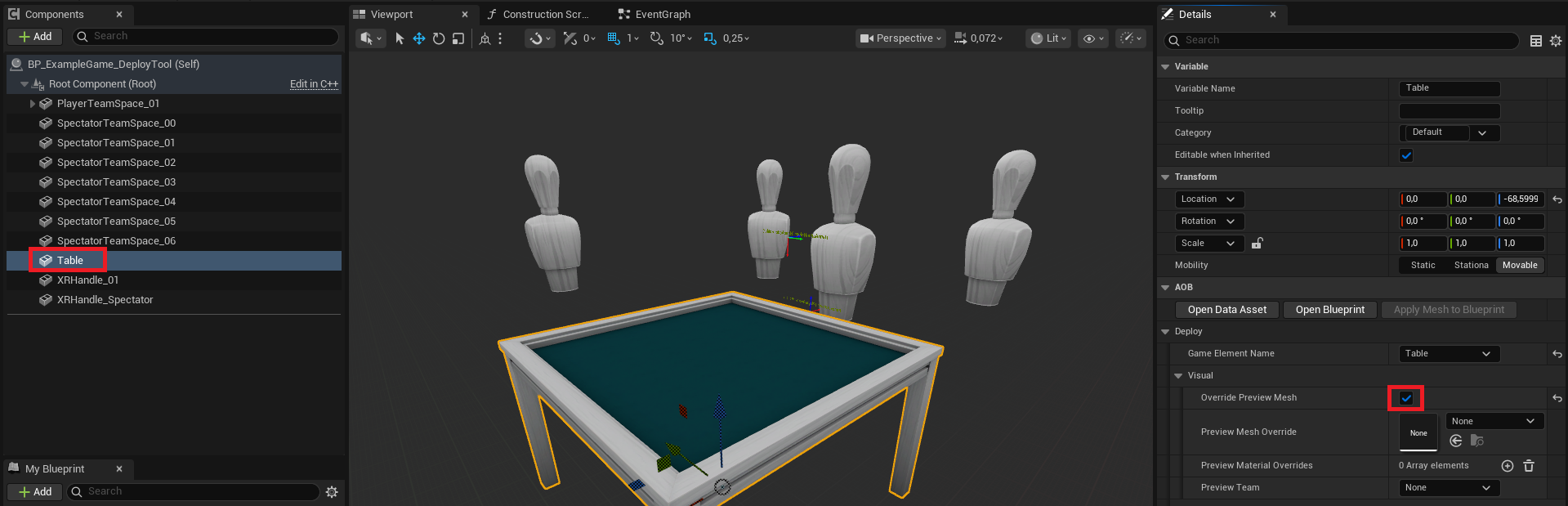
Once you enable this option, the Preview Mesh Override field will become available, allowing you to select the mesh you want to use for your table.
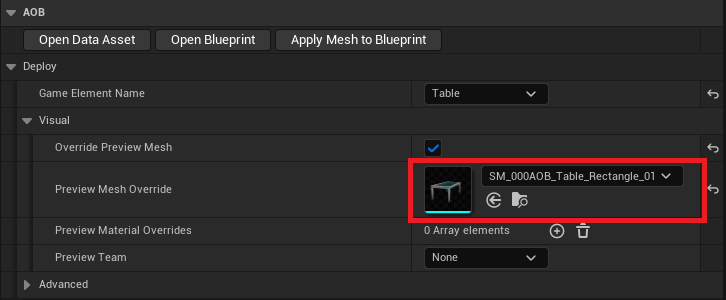
You can also change its material by clicking Preview Material Override and selecting a material.
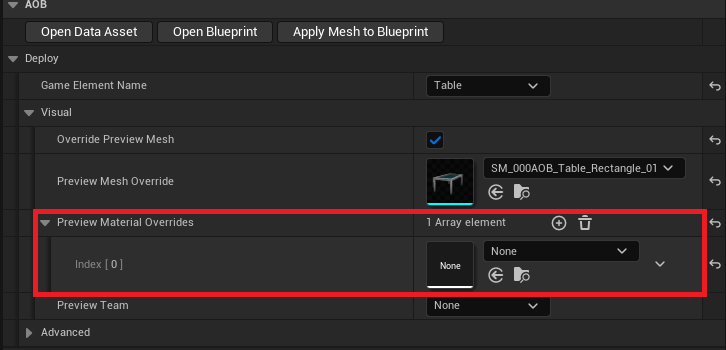
Finally, click Apply Mesh To Blueprint to apply the changes to your table.

Using the Table Blueprint
First, open your Table Blueprint, which you can find in your game’s Table folder.
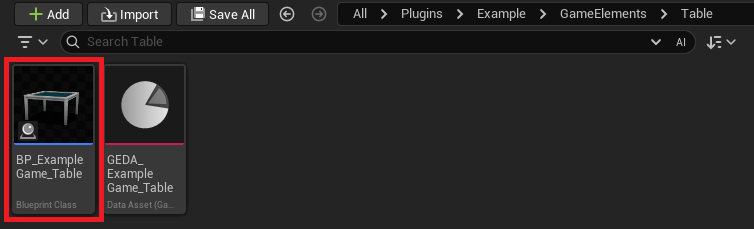
Then, select the Static Mesh Component to change the table’s mesh and material.
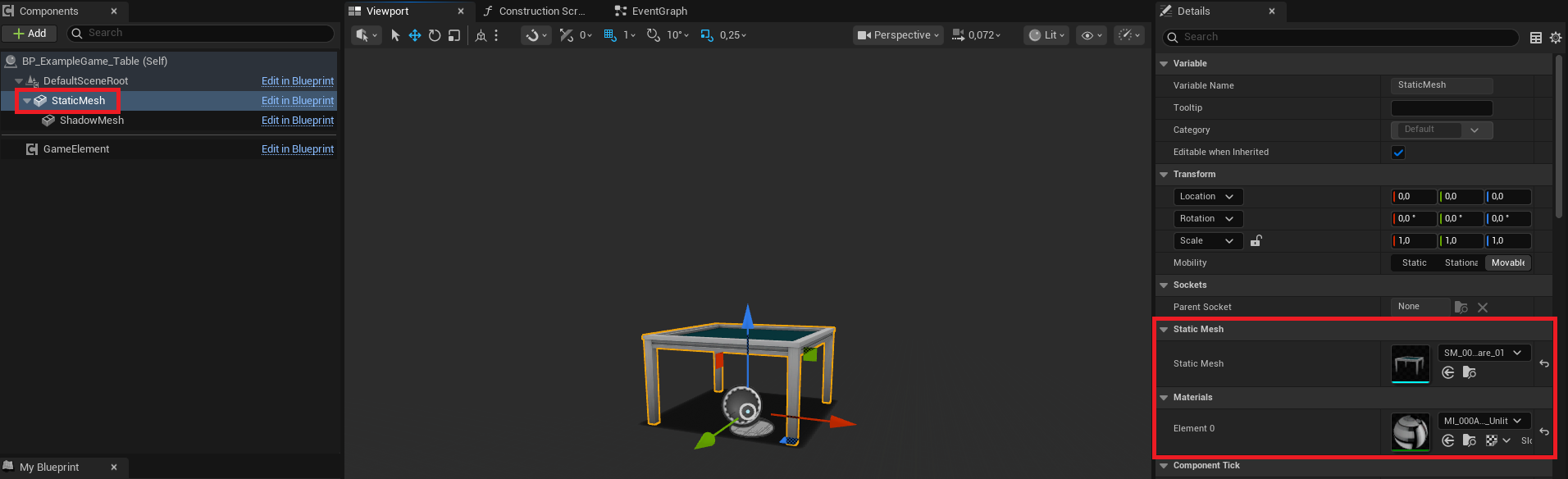
Finally, compile and save the Blueprint to apply your changes.
Step 2 – Adjust the PlayerTeamSpace Position
When you change your table’s mesh, you may also need to reposition the PlayerTeamSpaces and other elements attached to the table.
First, open your DeployTool Blueprint, which you can find in your game’s Deploy folder.
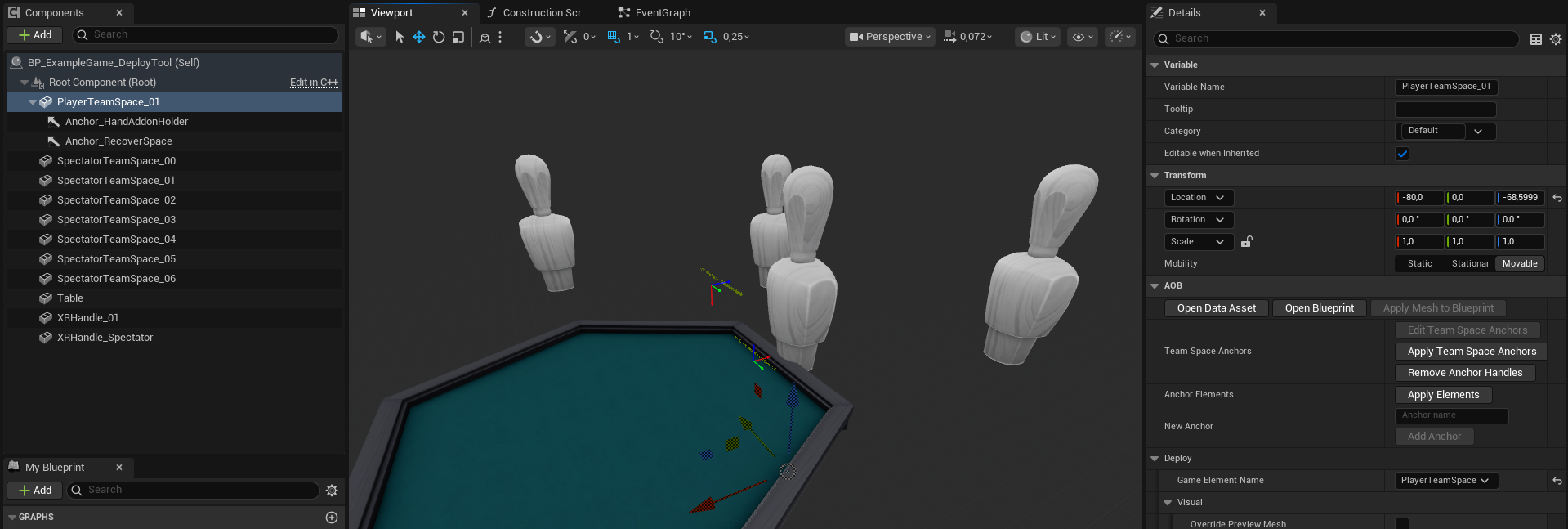
For example, if you replace your square table with a hexagonal mesh, you may need to reposition the PlayerTeamSpaces to prevent them from clipping into the table.