Randomize Sounds
You can easily add variety to your sound design through randomization to make it more realistic or interesting.
1. Samples
You need to download or record some audio files for the action you want to add sound to.
Plenty of soundbanks and websites offer audio files in many formats, specifically recorded and edited for use in video games (Epidemic Sound, Soundly…), in high quality.
In order to achieve some variety for your action’s sound, it’s convenient to work with a bunch of samples instead of just one, preferably some takes from the same recording session to make sure that they’re similar enough to belong to the same game element or action. The appropriate number of audio files depends on many things, like how often the sound will be triggered, the memory available, or how realistic we’re aiming to get our game sonorized, but adding 2 to 5 samples will significantly improve your sound design compared to working with just one sample.
Check this guide to learn how to create a MetaSound and to work with it: 2. Creating and configuring a MetaSound
2. Randomizing samples
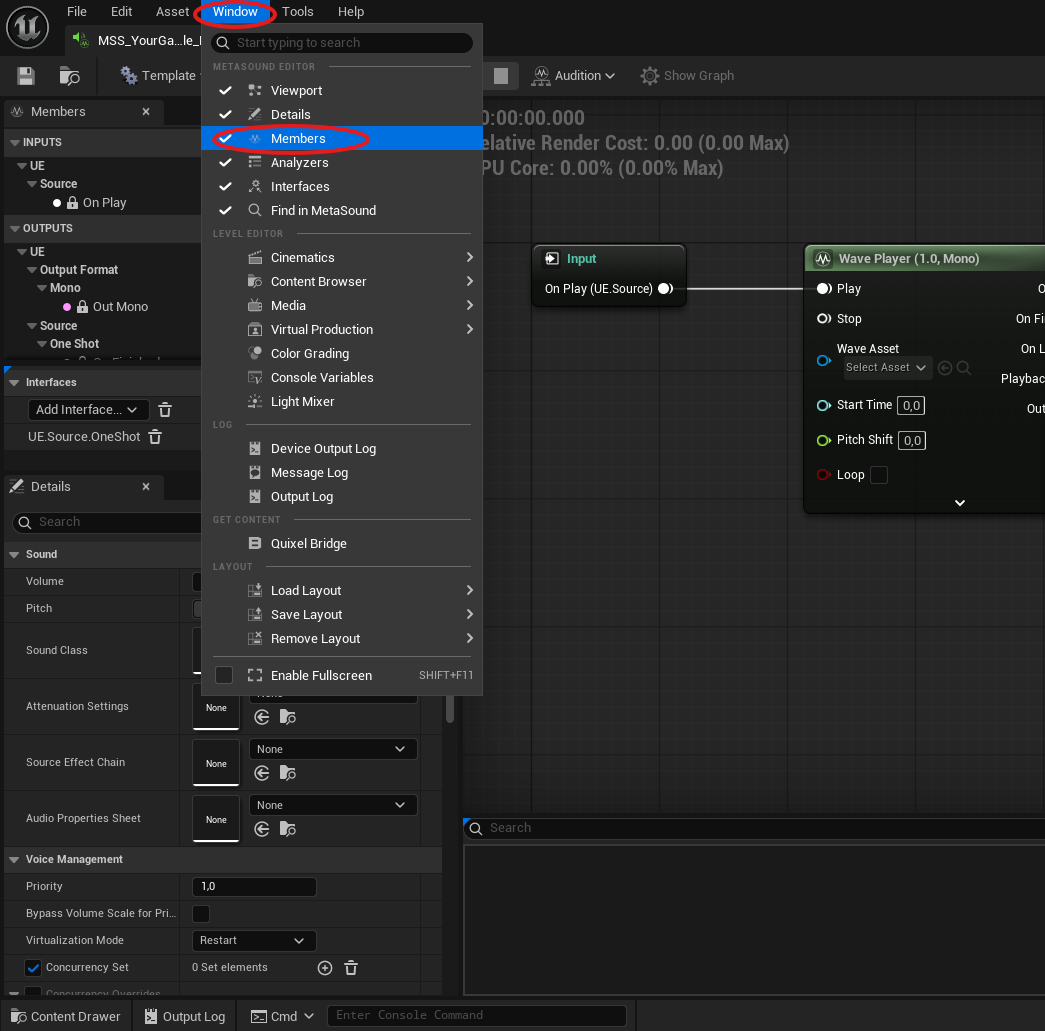
In your MetaSound Asset, the Members tab will usually be displayed on the left of the window; if it’s hidden, click on Window in the toolbar on top and select Members to make it visible.
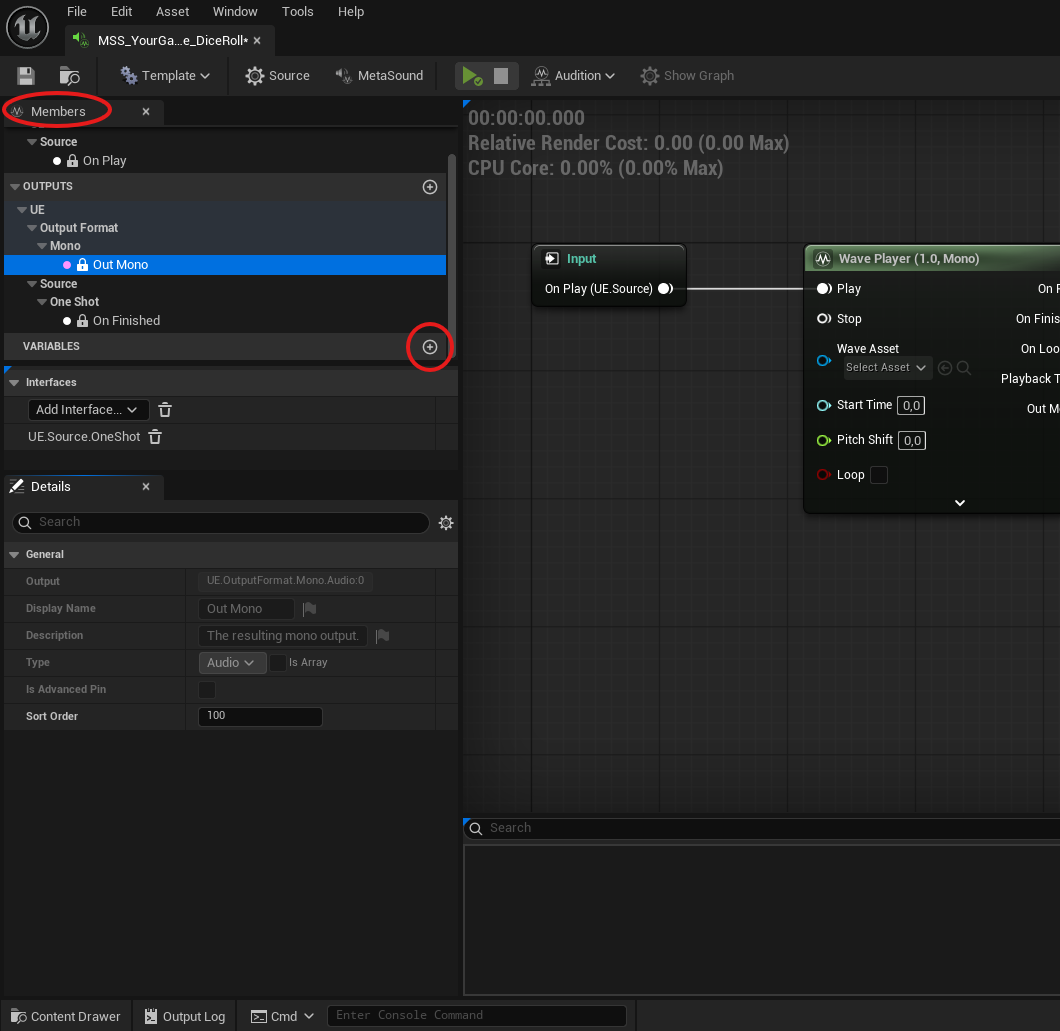
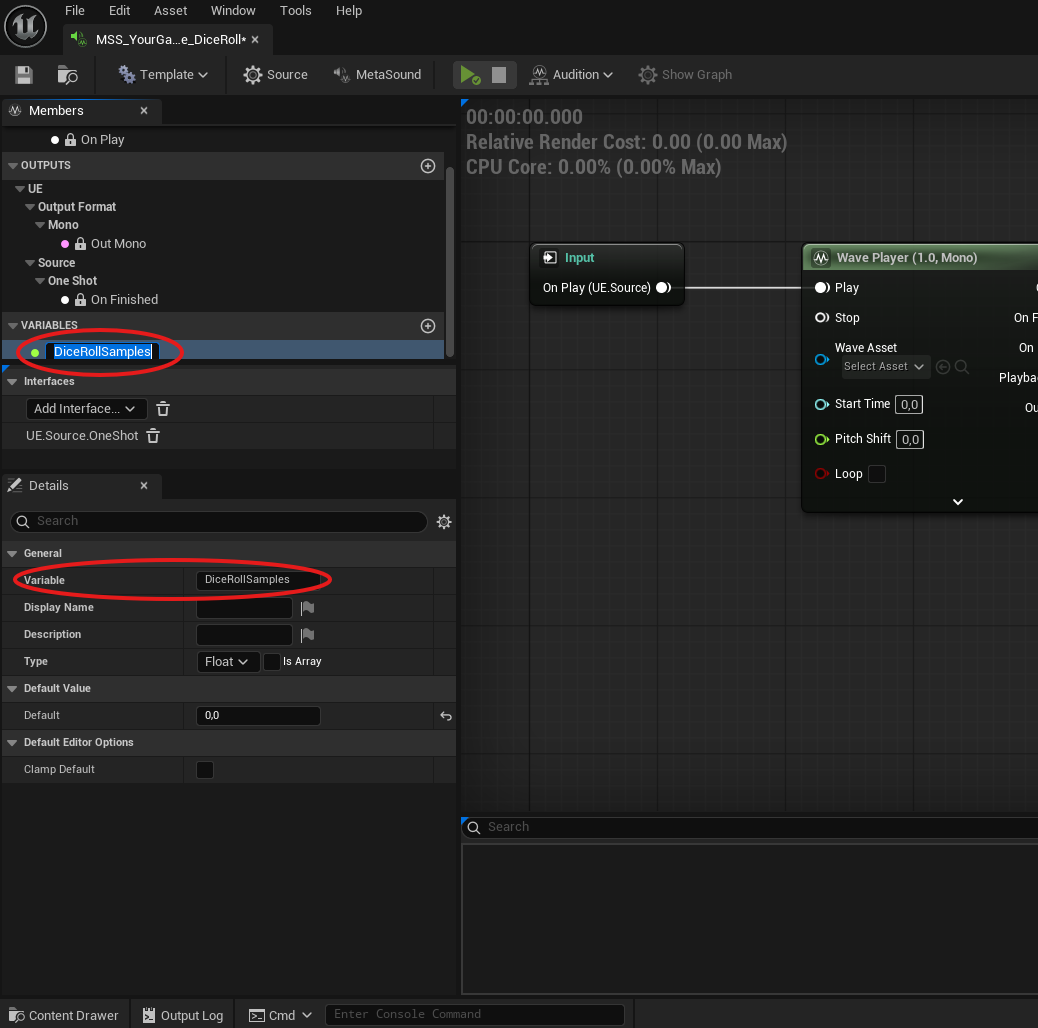
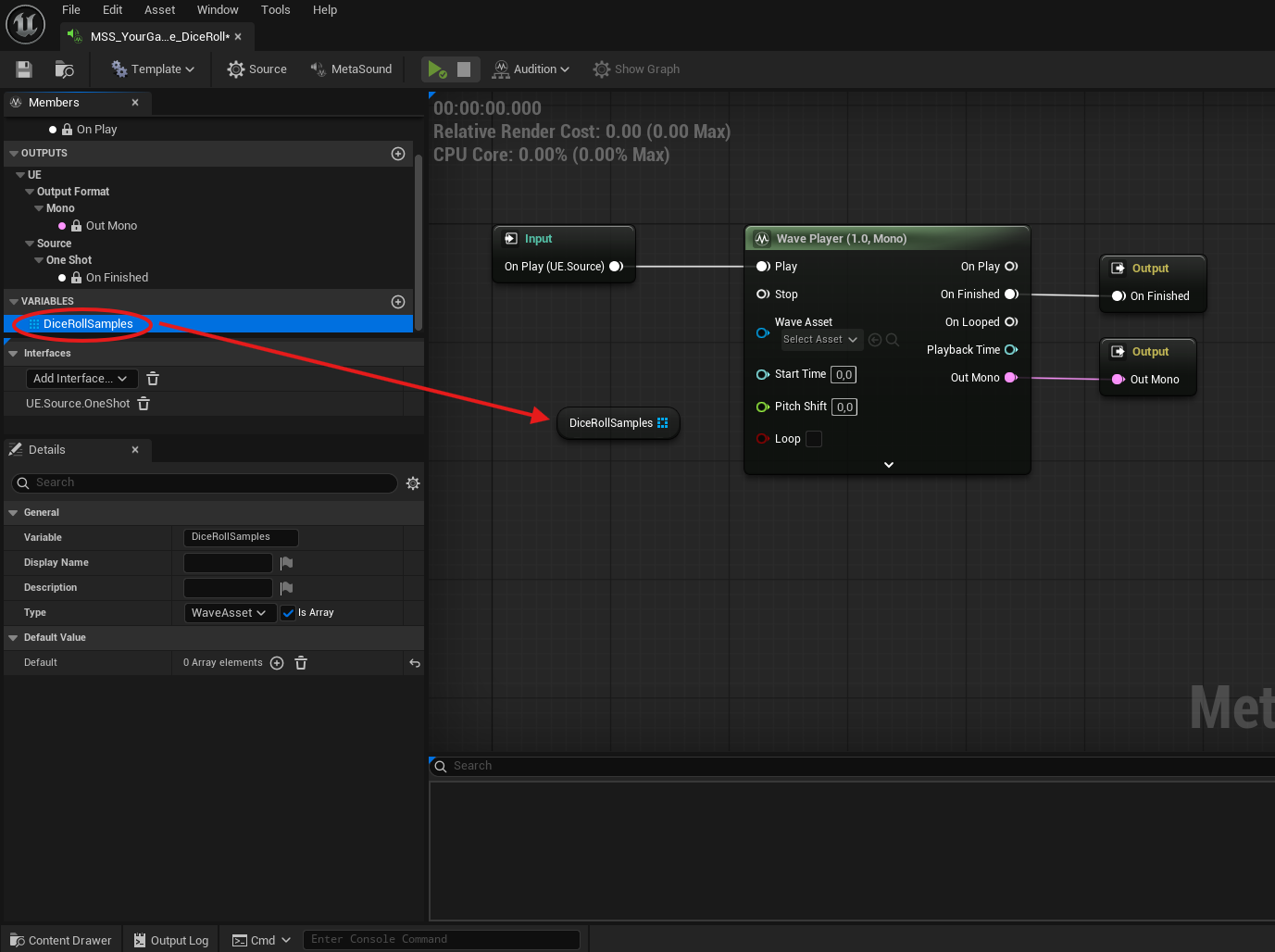
In the Members tab, look for the Variables displayable menu and press the + symbol to create a variable, then rename it.
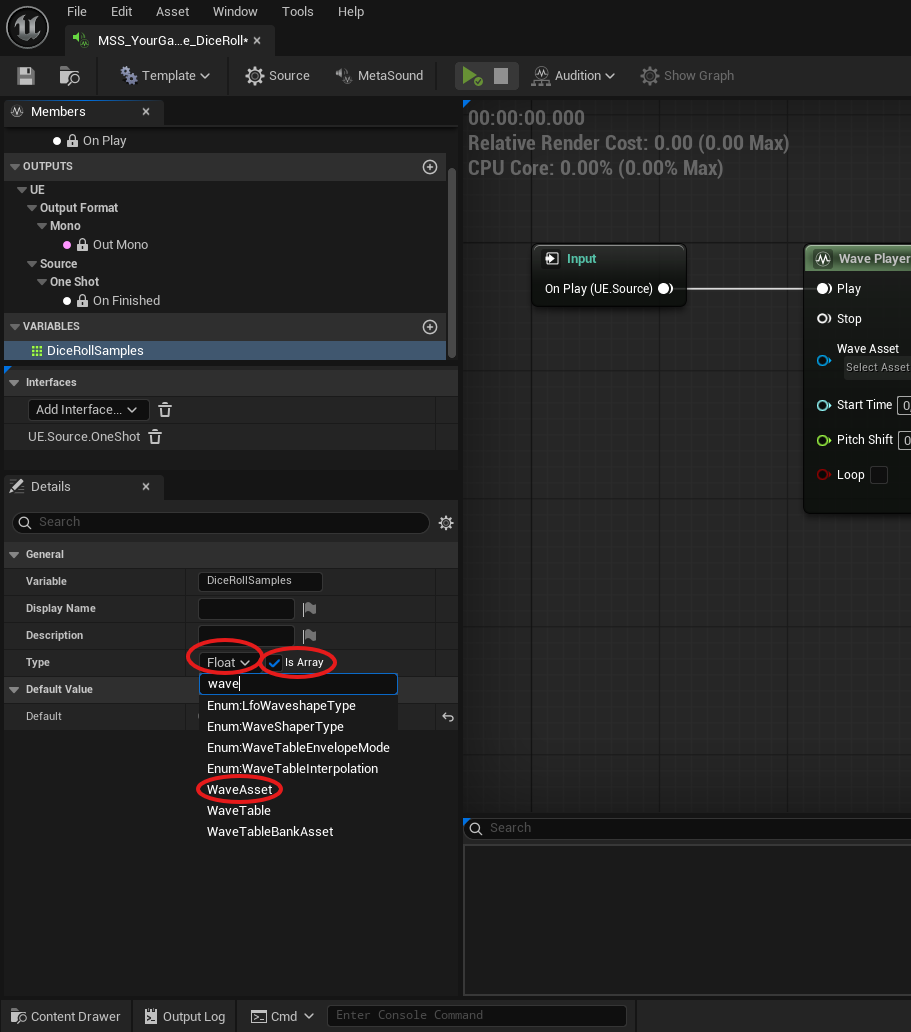
In your variable’s Details tab, click in the Type selector and look for the WaveAsset type. Select it (you will notice that the variable icon in the Members tab changes its color), and mark the Is array checkbox right next to it.
Now, drag the variable from the Members tab to any point of the Graph. You can arrange the nodes later.
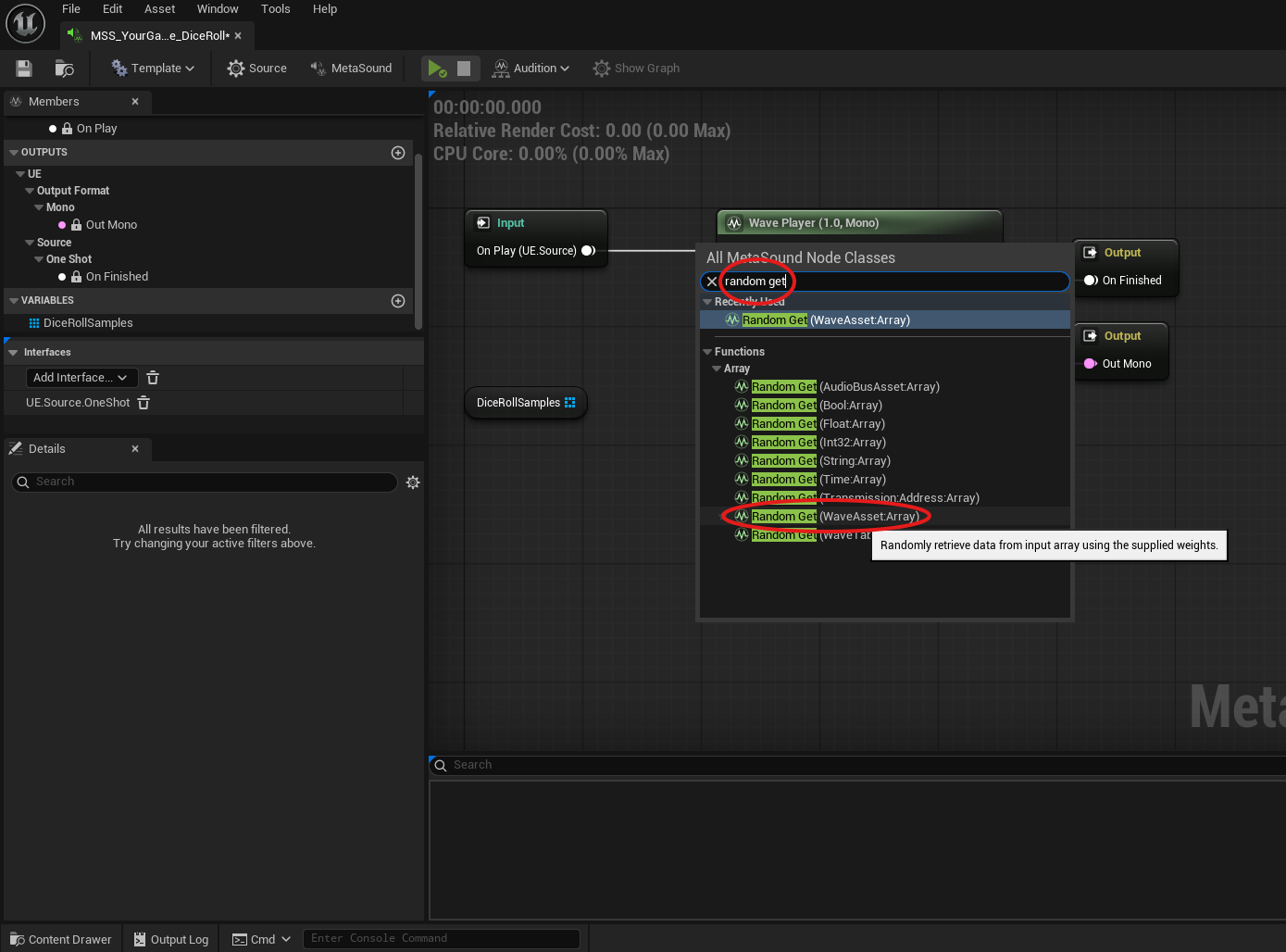
You will need a RandomGet node to randomly pick a sample from your WaveAsset Array every time this MetaSound is triggered. Right-click on any point on the graph, look for “Random Get” and select the WaveAsset:Array type.
Then, connect the pins as shown in the picture: connect the On Play pin in the Input node to the Next pin in the Random Get node, then connect the On Next pin in the Random Get node to the Play pin in the Wave Player node; connect your Wave Asset Array to the In Array pin in the Random Get node, and finally connect the Value pin in the Random Get node to the Wave Asset pin in the Wave Player node.
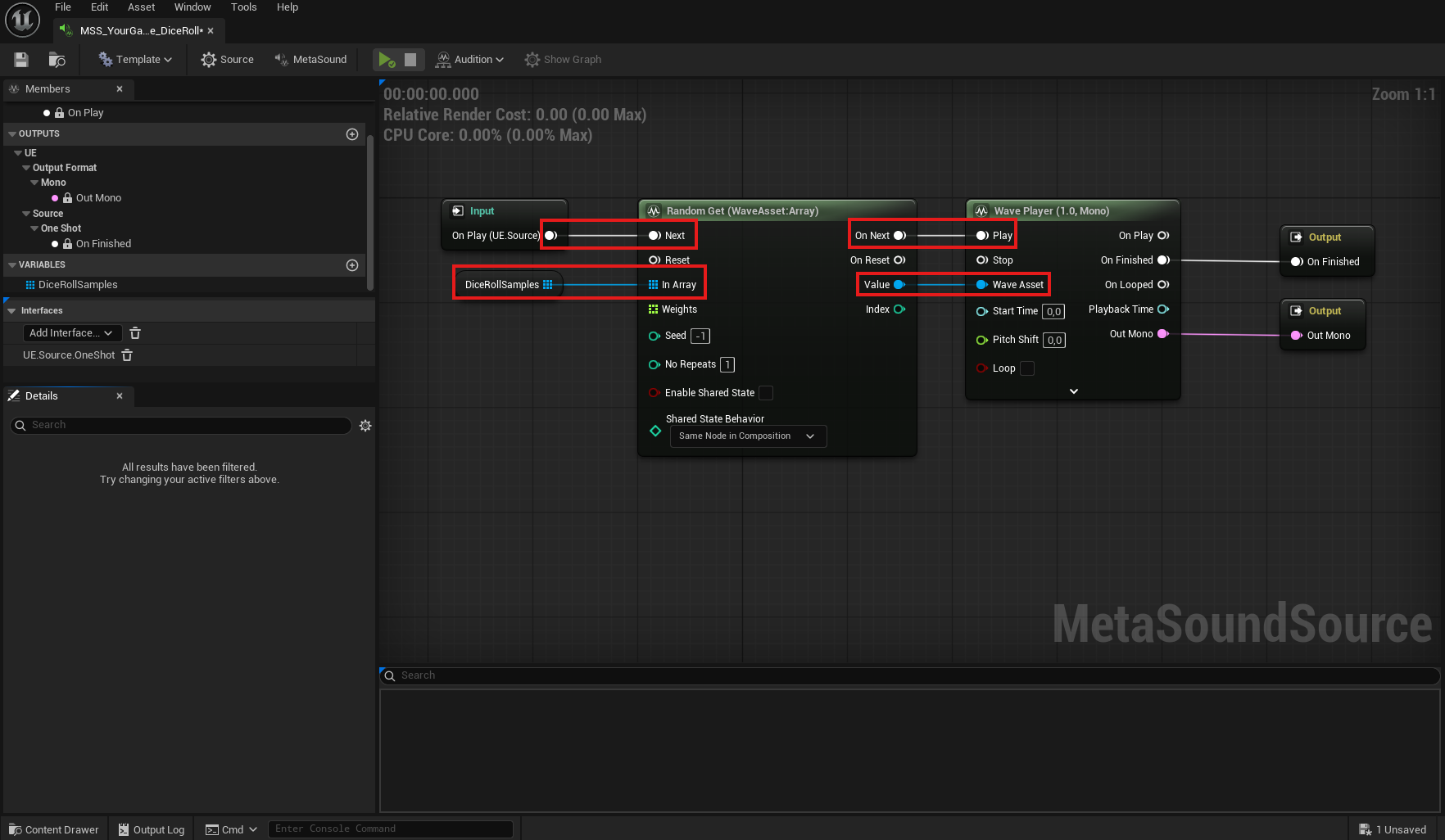
In No Repeats, type the number of elements to track to avoid repeating in a row. For example, a value of 2 prevents this node from repeating the last two selected elements.
After finishing the Output configuration as explained here: 2. Creating and configuring a MetaSound, your MetaSound will randomly pick a sample from your Wave Asset Array every time it is called by the engine
3. Randomizing pitch
Another layer you can add to your sound design to achieve more variability is pitch randomization. It will vary the pitch of every sample triggered within a range you determine.
Right-click on any point of the graph and search “random float”.
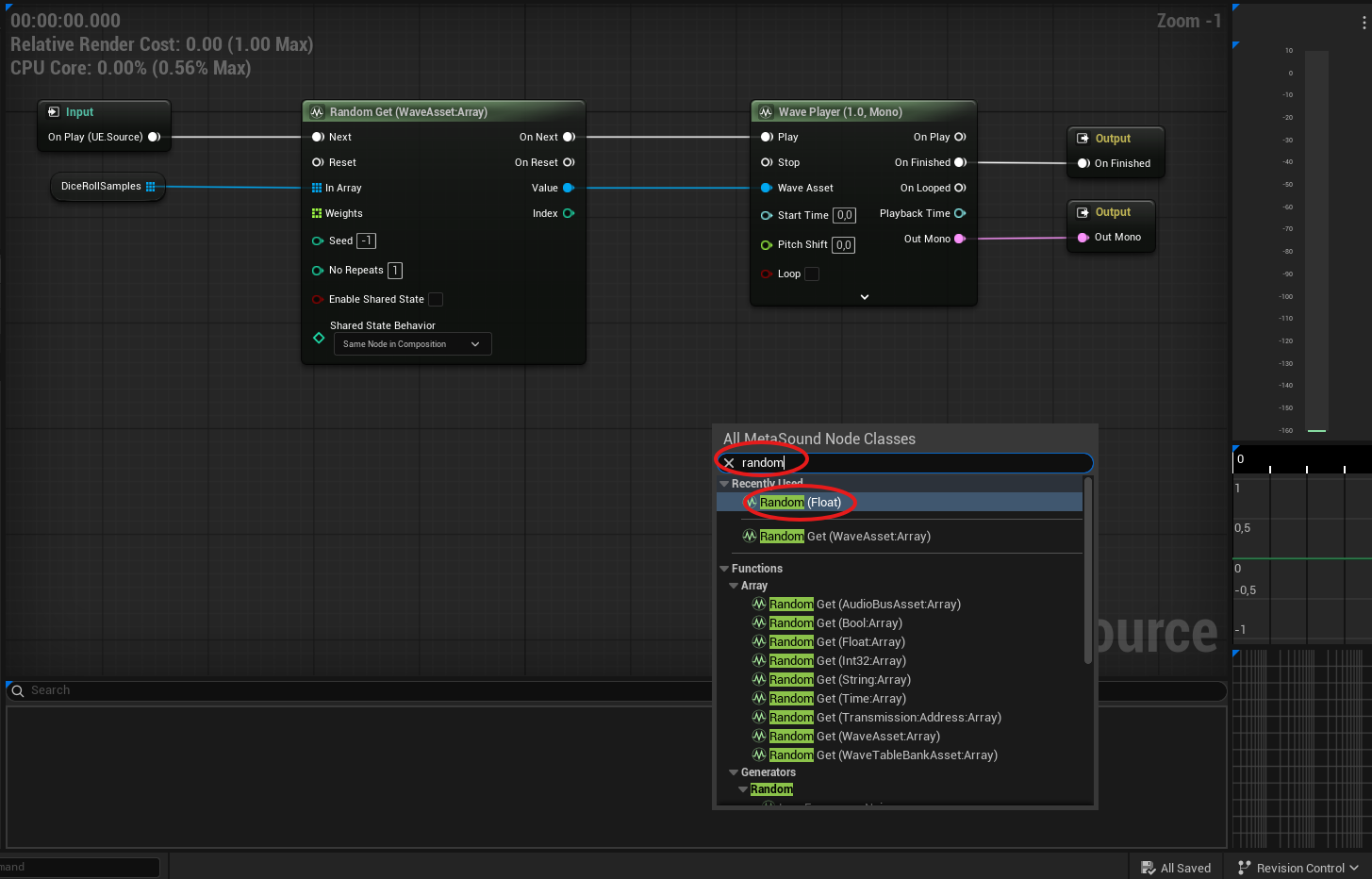
Connect the pins as shown in the picture: connect the On Next pin in the Random Get node to the Next pin in the Random (Float) node, then connect the On Next pin in the Random (Float) node to the Play pin in the Wave Player node. Also connect the Value pin in the Random (Float) node to the Pitch Shift pin in the Wave Player node.
Now you need to set the minimum and maximum values in the Random (Float) node. These fields work in semitones, so the pitch of every sample triggered will randomly vary within the semitone range you set here. Note that, depending on the audio file, changing its pitch, especially by many semitones, could create some distortion or undesirable results.
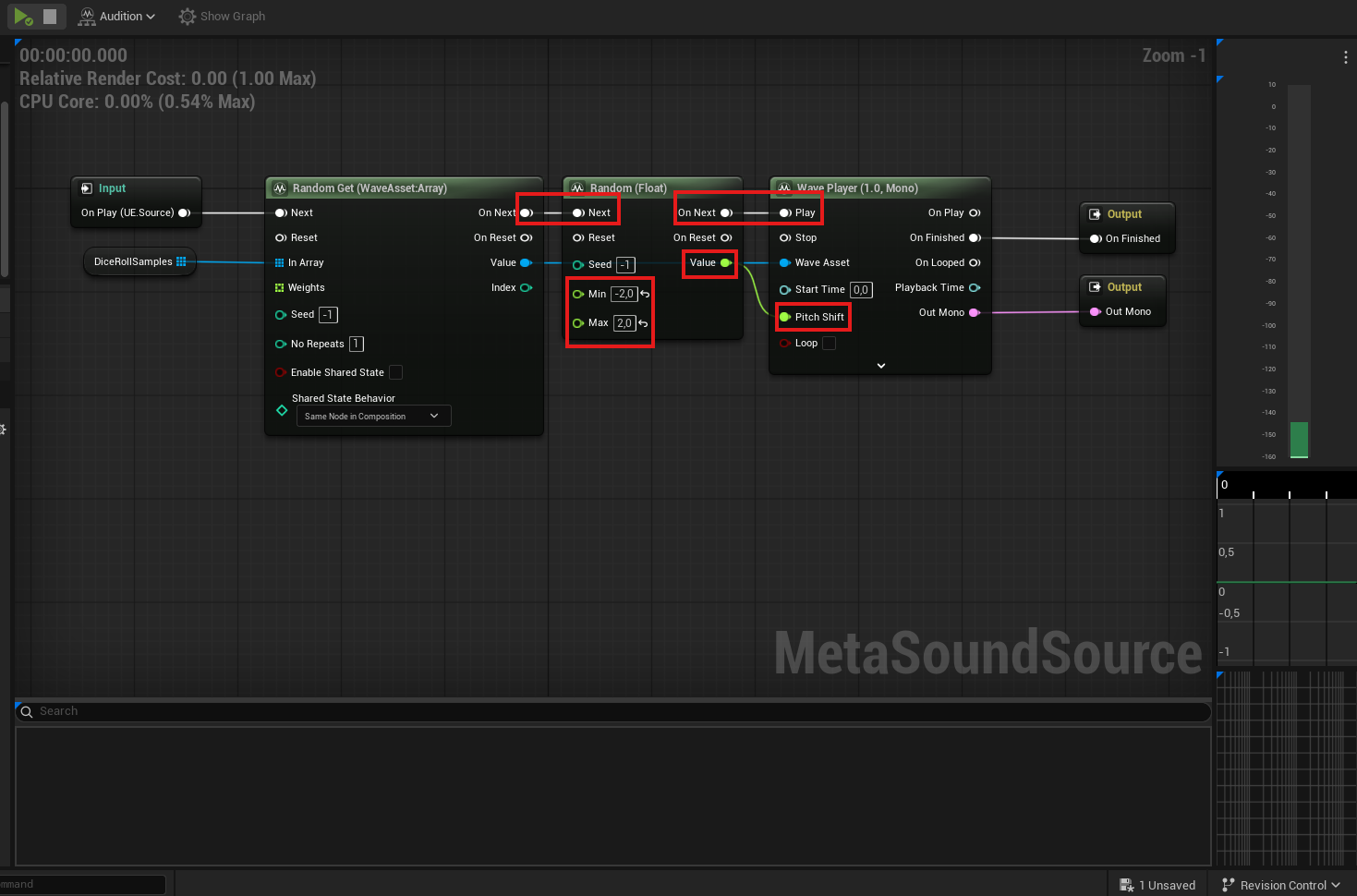
This way, every time the action calls this MetaSound, it will trigger a random sample from the Array that will get its pitch also randomly modified within a determined range.