Tokens
Tokens are one of the simplest GameElements in the system. They are standard GameElements with the capability to contain multiple token units and can be stored in Counters. Tokens are useful for tracking point systems, currency, resources, or any game mechanic that requires numerical accounting.
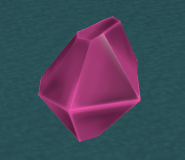
This guide explains how to create and configure tokens, as well as how to implement specific dice mechanics using the All On Board! Mod Kit. The following is a list of things you can do with dice in All On Board!:
- Create your Single Token
- Place Your Token on the Table
- Create a Tokens Bag
- Slot a Token
- Add an SFX to a Token
- Spawn Slotted your Token at the Beginning of the Game
Create a Token
Step 1 - Open the Token Creation Wizard
First, open the Token Creation Wizard click it on the Alll On Board! Mod Kit ToolBar.
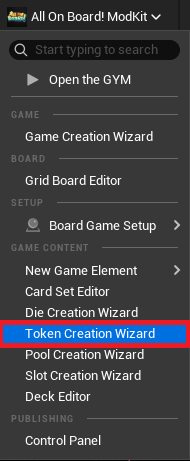
In the following window, click New Die.
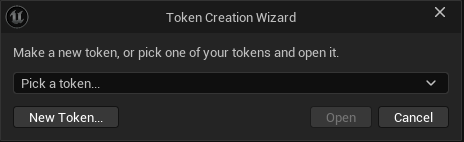
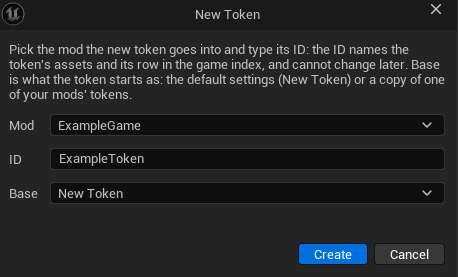
Next, select the mod you want to create your token for and enter an ID. This is the name you will use to find your token in the Game Setup blueprint.
You can also choose whether to create the token from scratch or use an existing token as a base.
Once you have configured these options, click Create.
Step 2 - Configure your token
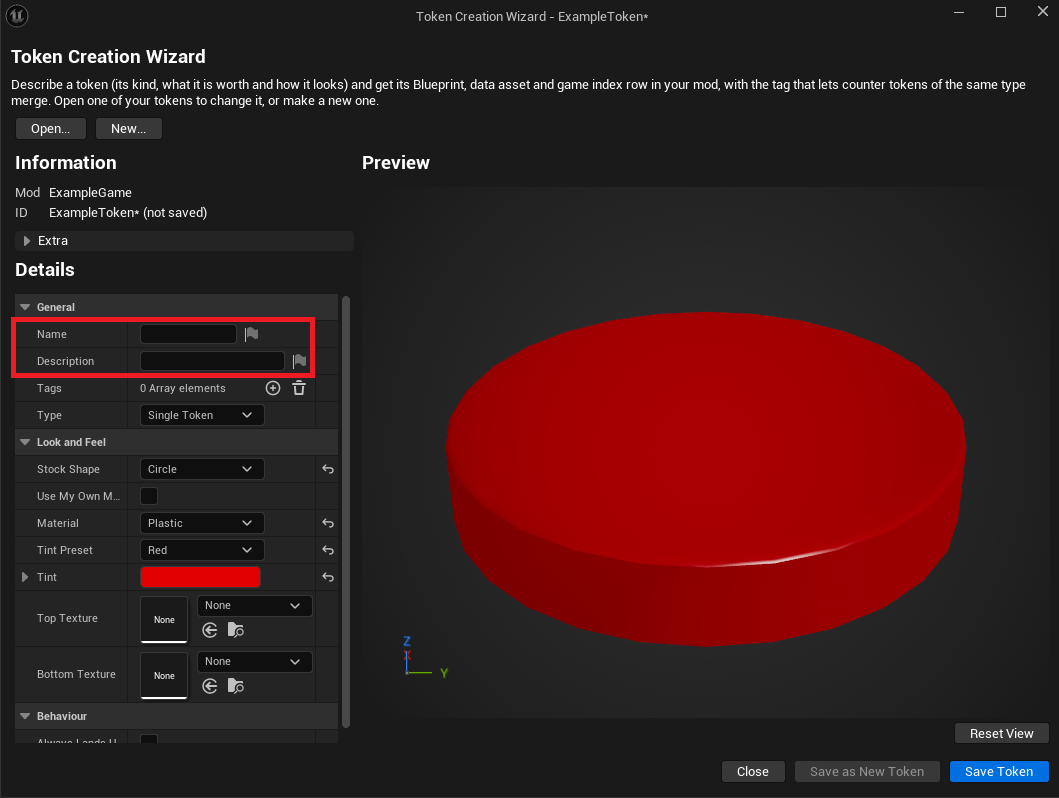
First, enter the name and description of your token. This information will be displayed when someone opens the token's Smart Glance.
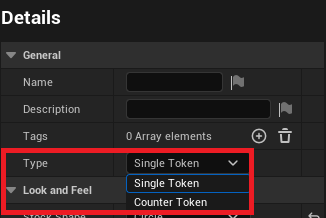
Next, choose the type of token. If you want a token that can only be grabbed one piece at a time, select Single Token. If you want a token that allows you to grab multiple pieces at once, select Counter Token.
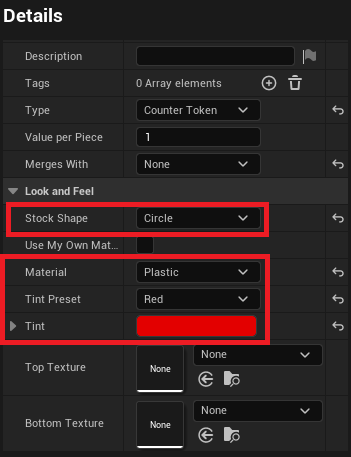
Regarding the Stock Shape section, you can select the mesh for your token. The available materials and tint presets will depend on the selected mesh. You can also use the Tint field to choose a custom color.
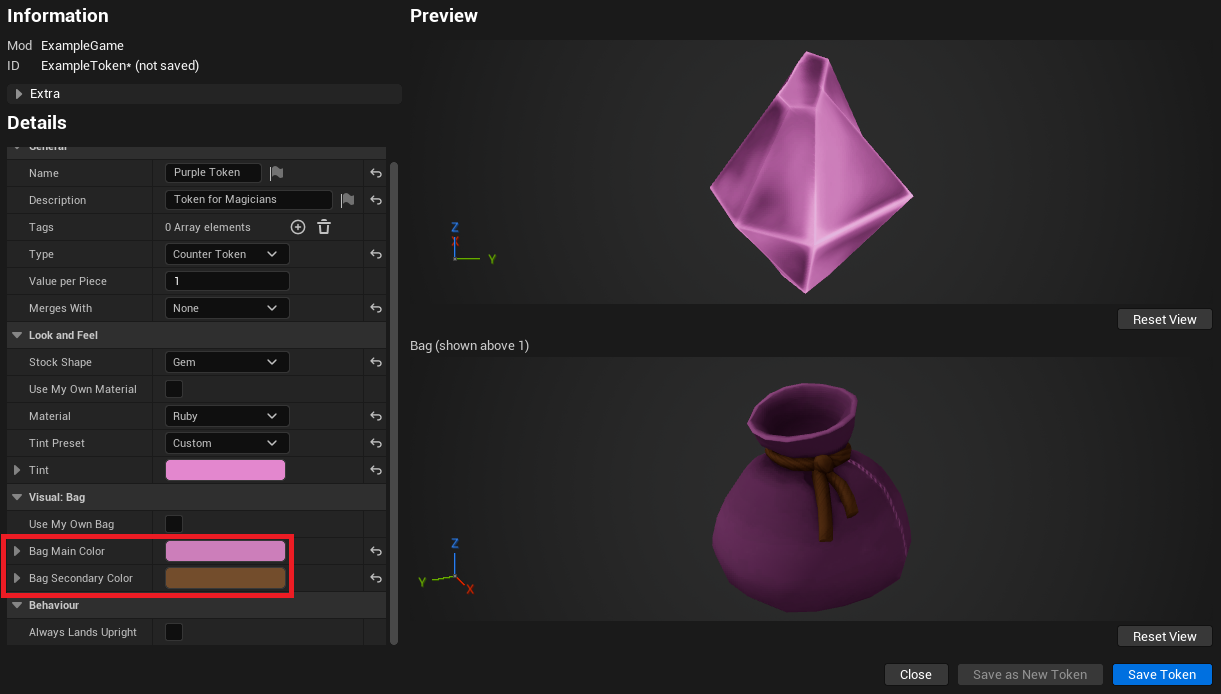
If you selected Counter Token, you will also have a section to customise the bag used when you are holding more than one token. Bag Main Color lets you choose the colour of the bag, while Bag Secondary Color controls the colour of the drawstring.
In the Behaviour section, you can enable Always Lands Upright, which makes the token always land upright when a player releases it.

Finally, once you have configured all your tokens, click Save Token to save your changes.
If you want to learn more about the Token Creation Wizard settings, check out this guide: Token Creation Wizard
If you want to place a token or multiple tokens like this one on the table, go to this page: Deploying elements