Publish from Portal Web
This guide explains how to publish a mod using the mod.io web portal.
If you haven’t packaged your mod yet, follow this guide: Packaging a Mod
Step 1 - Prepare the packaged mod
Compress the packaged mod into a .zip file. The zip must contain:
MyModName.uplugin
Content/
Step 2 - Create the mod profile
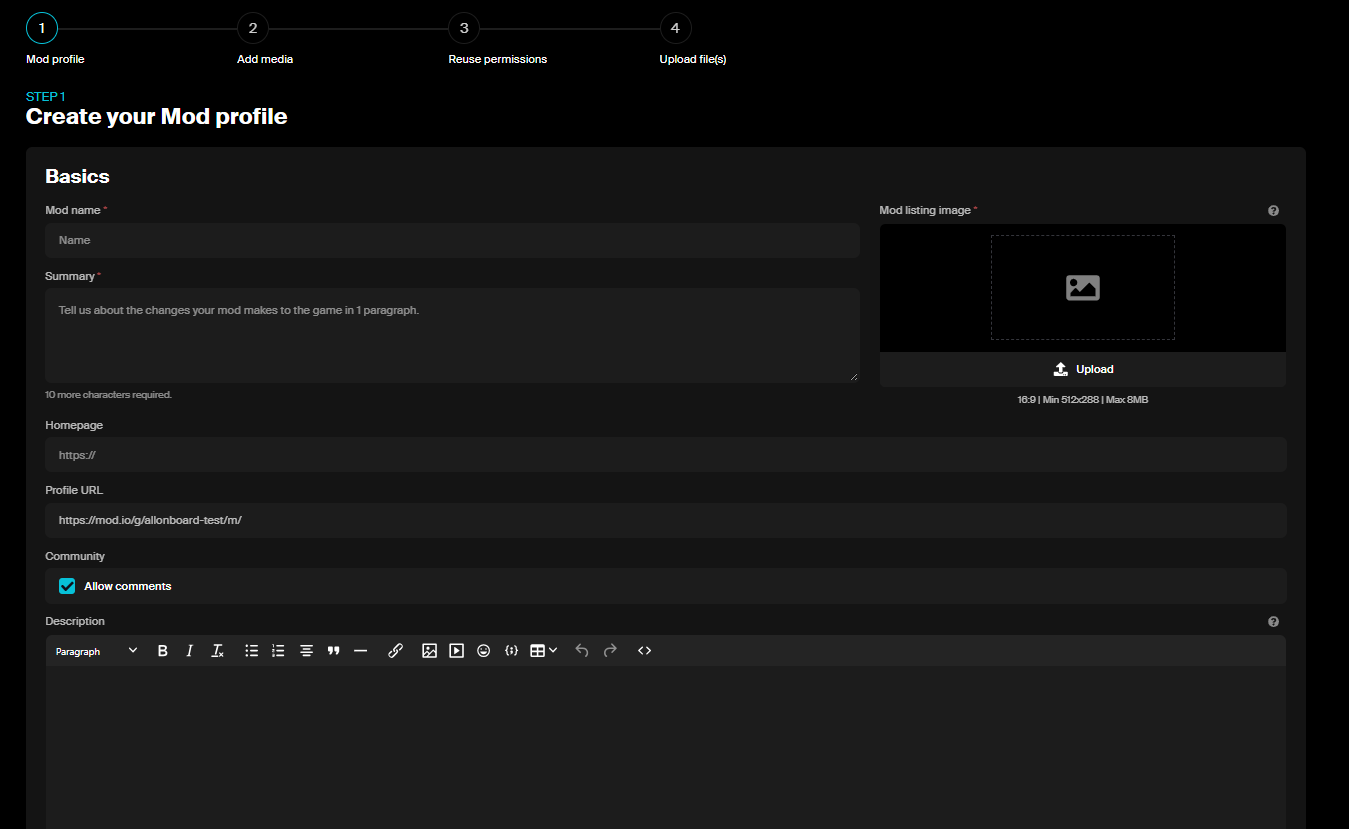
Open your browser and go to mod.io. Then, log in to your account. If you don’t have an account yet, create one before continuing. Navigate to the AllOnBoard game page on mod.io and click Add Mod in the top-right corner of the game page.

Afterwards, complete the required fields:
- Mod Name: The display name of your mod on mod.io.
- Mod Listing Image: The cover image displayed on your mod page.
- Summary: A concise description of your mod.
- Tags (Optional): The categories or genres that best describe your game.
- Visibility: Set the mod's visibility status (Public or Hidden).
Step 3 - Add media
In the All On Board! app, Media Files are displayed on your game profile, allowing other players to see what your game looks like before they download or play it. Adding screenshots and other images to your mod helps showcase your game and gives players a better idea of what to expect.
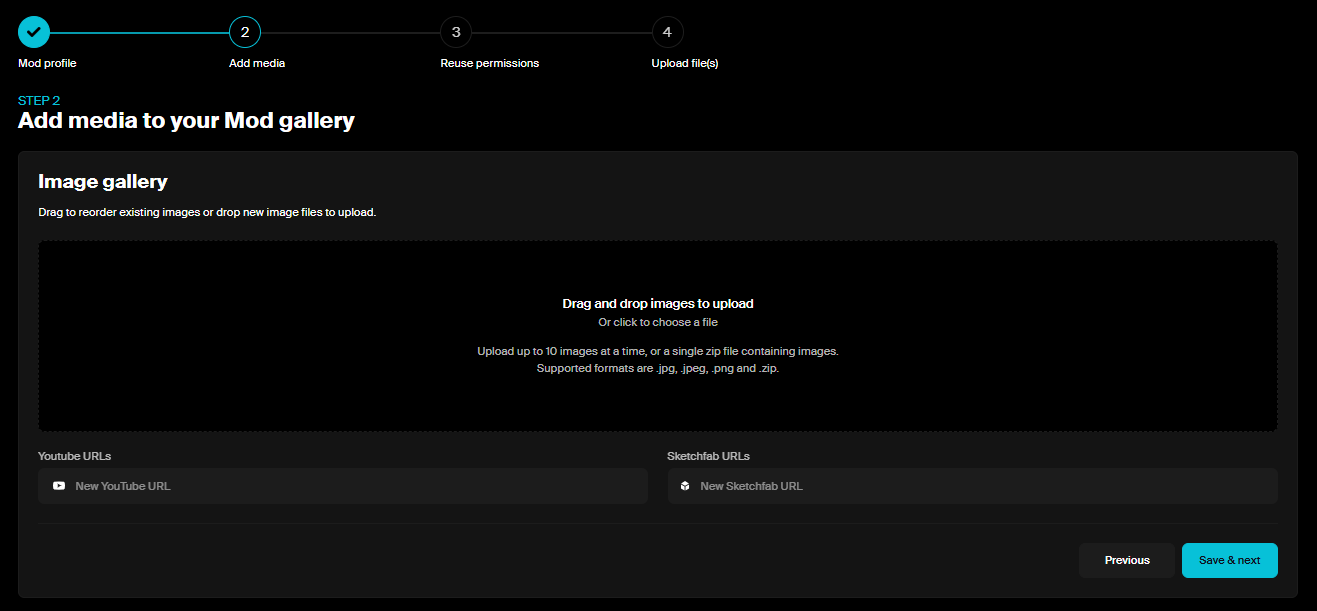
If you don’t have your images ready yet, you can upload them later by following this guide: Screenshots guide
Step 4 - Reuse permissions
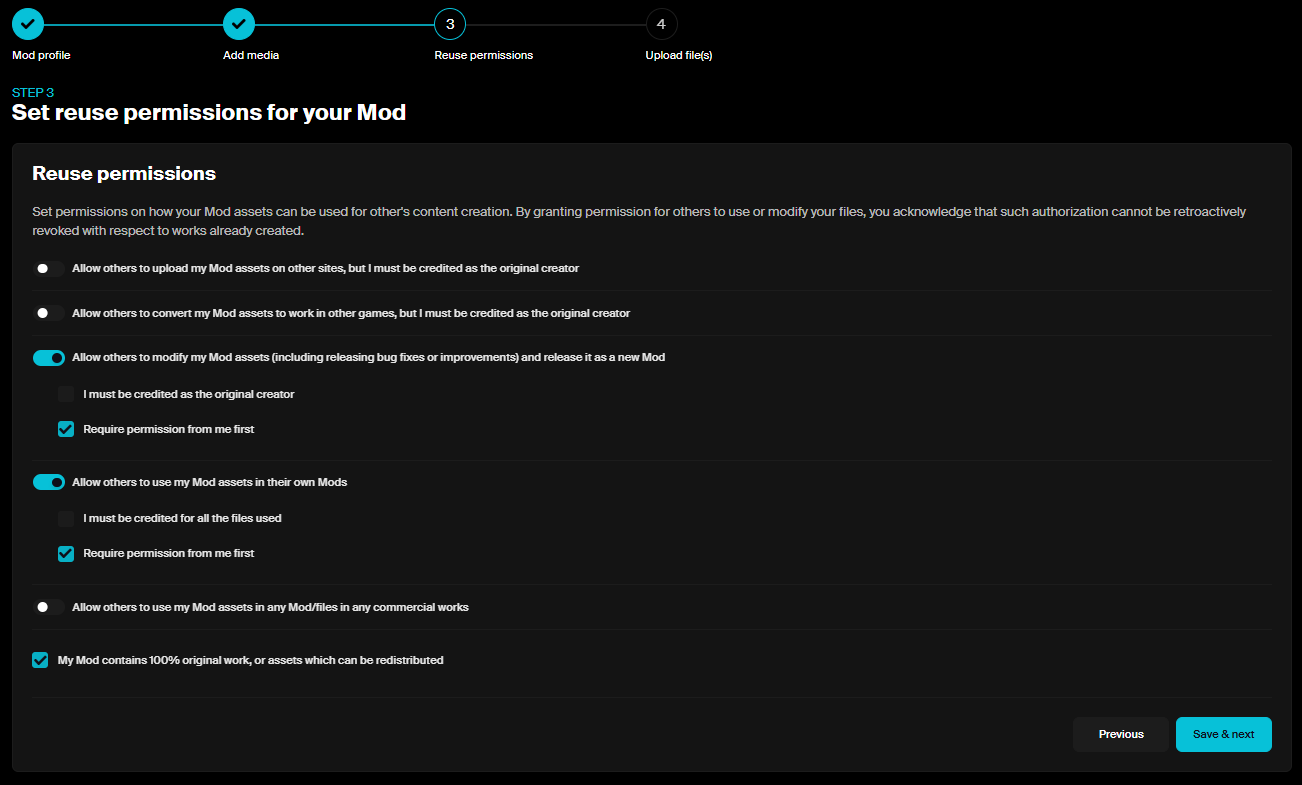
In this section, you can define how other creators are allowed to reuse the content from your mod. These permissions are optional and let you specify the conditions under which your content can be used in other mods.
You can configure whether other creators are allowed to reuse your content, whether they need to give you credit, and whether they need to request your permission before using it. Choose the options that best match how you want your mod's content to be reused.
Step 5 - Upload your Mod file
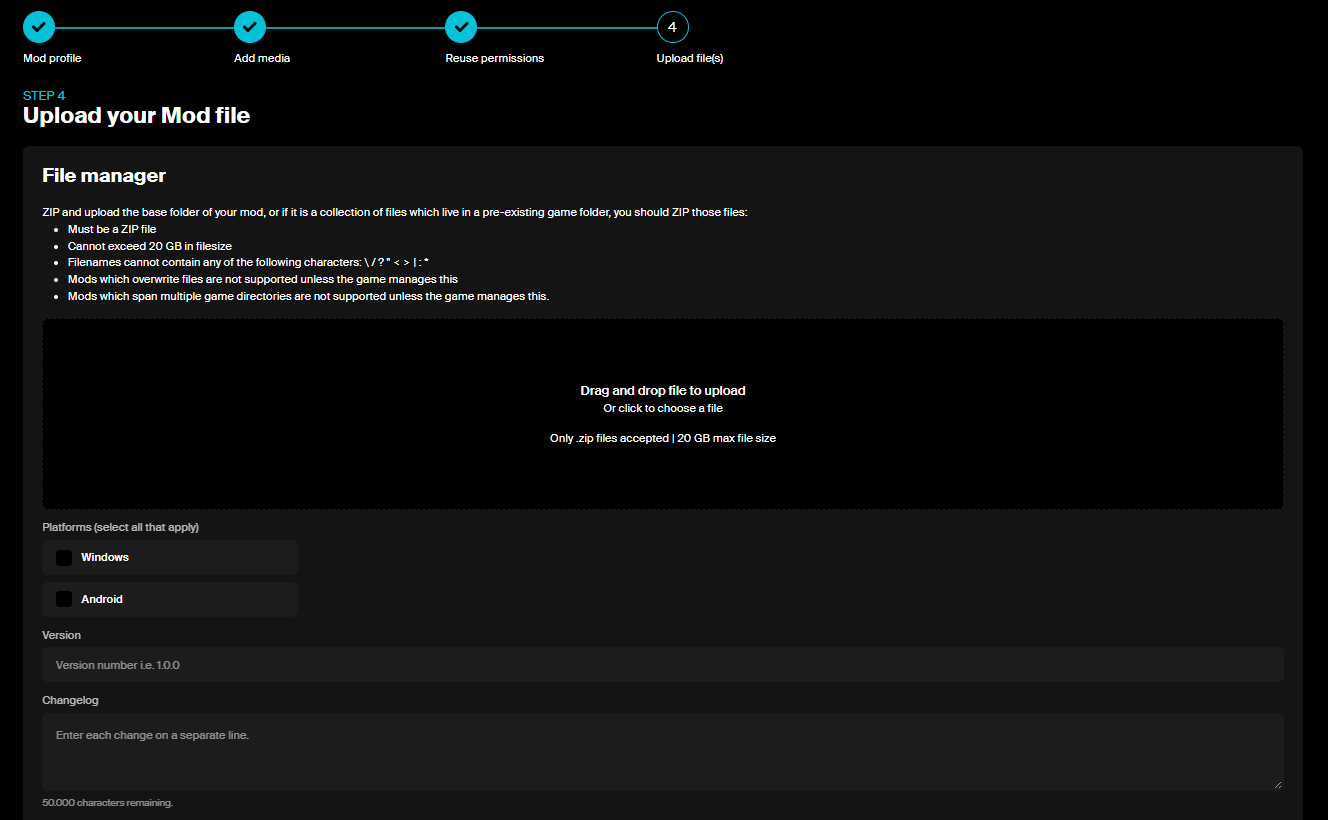
In this section, you can upload the packaged file of your mod and configure the information required for mod.io to install it correctly. If you don’t have your packaged mod yet, follow this guide: Packaging a Mod
- File Manager: Upload the packaged file that players will download when they install your mod.
- Platform: Select the platform or platforms that your mod supports: Windows or/and Android.
- Version: Specify the version number of the mod you are uploading.
- Changelog: Add a description of the changes included in this version.
- Metadata Blob: Add any additional metadata required by the game to identify or configure your mod. This field is usually only needed when the game specifically requires additional information to be included with the mod file.
- Terms and Conditions: Review and accept the terms and conditions required to upload and distribute your mod through mod.io.
Click “Save & Next”. mod.io will take you to a page where you can upload additional files to your mod.

If you don’t have any additional files to add, click “Finish Set Up” to complete the setup. Finally your mod profile is now created.