Screenshots Guide
If you already have your mod.io profile set up, whether you created it through the web portal and forgot to add images to the Image Gallery, or created it through the Control Panel, we recommend following this guide. In the All On Board! app, Media Files are displayed on your game profile, allowing other players to see what your game looks like before they download or play it. Adding screenshots and other images to your mod helps showcase your game and gives players a better idea of what to expect.
Step 1 - Log in to Mod.io
If you publish your mod from mod.io, select My Content and navigate to Mods.

In this section, you can see all the profiles you have created. Select the one you want to add images to, then go to Manage → Media.

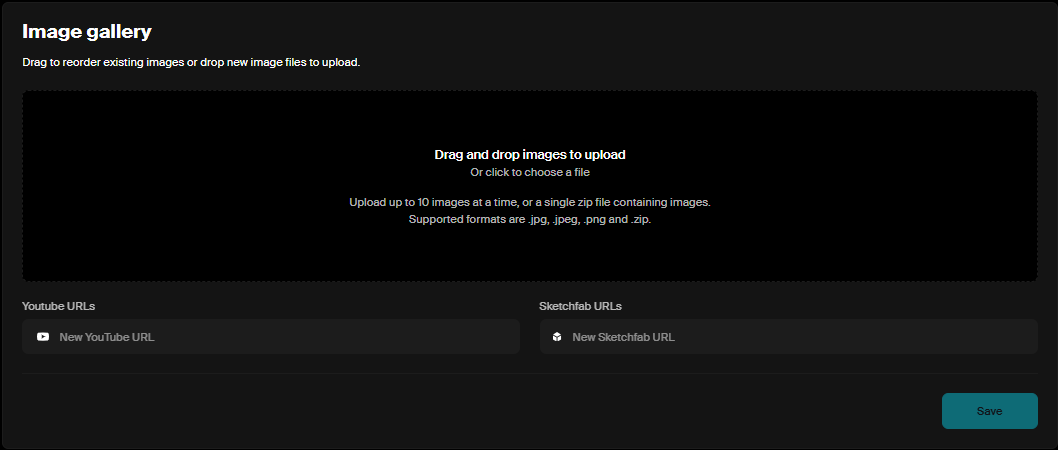
After clicking there, a page will open where you can upload your images.