Teamspaces for Game Designers [DRAFT]
Audience: Game Designers
Last Updated: May 2026
Related Systems: Notebook, Game Master, Factory, Game Stages & Deploy (guide pending), Floating Player Area (guide pending), Player Plates (guide pending), Actions System (guide pending)
Technical Reference: TeamSpaces Technical Reference
TODO (from Notion): link pending.
Scope: TeamSpace actors, TeamSpaces Manager subsystem, possession/unpossession flow, observers, anchors, spectator seats, visual representation, Notebook integration
Out of scope (cross-reference only): Factory registration, Notebook internals, GameMaster team configuration, Persistence internals, Actions system
Blueprint Examples: Examples show Blueprint node flow as FunctionName(Input1, Input2).
Introduction
Glossary
| Term | What it is | Example |
|---|---|---|
| TeamSpace | A designated seat at the virtual game table where a player sits | The chair and area assigned to Player 1 |
| TeamID | A logical identifier linking a seat to game rules and team data | TeamID 1 = Red team, TeamID 2 = Blue team |
| SeatID | A physical seat position number on the table | Seat 0 is typically the host position |
| Possession | When a player occupies a TeamSpace, becoming the player for that seat | User A sits in TeamSpace 1, becomes Player 1 |
| Spectator TeamSpace | A special seat for users who are watching but not playing | A viewer joins mid-game and observes |
| Observer | An object that reacts when a TeamSpace is possessed or released | A PlayerArea that updates its color when a player sits |
| Anchor | A named attachment point inside a TeamSpace where elements can be placed | "PlayerPlate_Anchor" holds the player's name plate |
| Swappable | An observer that can exchange its contents with another player's equivalent | Two PlayerAreas swapping all their elements |
| Position Offset | An adjustment to where the player actually appears relative to the seat | Moving a player up for Mixed Reality alignment |
| Page | The per-element Notebook record where the system stores keyed data (see Notebook) | A TeamSpace's page holds Team, Seat, PlayerName, plus your custom keys |
What is a TeamSpace?
Think of a TeamSpace as a chair at a board game table. When you sit in a chair at a real table, several things happen automatically: everyone can see where you are, the area in front of you becomes "your space" for cards and tokens, and the game knows you as "the player in seat 3."
The TeamSpaces system does exactly the same thing in VR:
- It gives each player a place at the table — a physical position where their VR avatar appears
- It assigns a team identity — linking the player to game rules, colors, and scoring
- It sets up a personal area — where player-specific elements (cards, tokens, plates) appear
- It tells the whole game "who is sitting where" — so all systems can react to player assignments
The Key Concept: Seats at a Table
┌─────────────────────────────────────────────────────┐
│                   GAME TABLE                        │
│                                                     │
│   ┌──────────┐  ┌──────────┐  ┌──────────┐         │
│   │ Seat 0   │  │ Seat 1   │  │ Seat 2   │         │
│   │ TeamID 1 │  │ TeamID 2 │  │ TeamID 3 │         │
│   │ 🔴 Red   │  │ 🔵 Blue  │  │ 🟢 Green │         │
│   │          │  │          │  │          │         │
│   │ [User A] │  │ [User B] │  │ [empty]  │         │
│   │  PLAYER  │  │  PLAYER  │  │          │         │
│   └──────────┘  └──────────┘  └──────────┘         │
│                                                     │
│                         ┌──────────┐                │
│                         │ Spectator│                │
│                         │ [User C] │                │
│                         └──────────┘                │
└─────────────────────────────────────────────────────┘

User A occupies Seat 0 → becomes Player 1 (Red)
User B occupies Seat 1 → becomes Player 2 (Blue)
User C has no seat → becomes Spectator
Seat 2 is empty → waiting for a player
Each seat has:
- A visual mesh (chair/marker) that disappears when someone sits down
- A team color that matches the game's team assignment
- Anchors for player-specific elements (cards, tokens, name plates)
- Observers that react when someone sits or stands
Prerequisites: What You Need First
Before setting up TeamSpaces, ensure these systems are ready:
| System | Why it's needed | Guide |
|---|---|---|
| Game Stages & Deploy | TeamSpaces are spawned during the Deploy stage | Game Stages & Deploy (guide pending) |
| GameElement / Factory | TeamSpaces are spawned by the Factory as GameElements | Factory |
| Game Master | Registers teams and team colors | Game Master |
| Notebook | Stores per-player data (scores, names) in TeamSpace pages | Notebook |
Quick Start: Setting Up Player Seats
Scenario: You are creating a 2-player board game and need to set up seats for both players.
Step 1: Create a TeamSpace Blueprint
- In Content Browser, right-click and select Blueprint Class
- Search for AOBTeamSpaceActor in the class picker and select it as parent (this is the AllOnBoard variant with VR interaction support)
- Name it:
BP_[GameID]_TeamSpace_Player- Example:
BP_002TBI_TeamSpace_Player
- Example:
TODO (from Notion): screenshot pending — "Creating Blueprint from TeamSpaceActor parent class".
Step 2: Configure the Visual Mesh
- Open your new Blueprint
- Select the VisualRepresentationSMComponent in the Components panel
- Assign a Static Mesh that represents the seat (a chair, a marker, etc.)
- This mesh automatically hides when a player sits down
TODO (from Notion): screenshot pending — "VisualRepresentationSMComponent with assigned mesh in Details panel".
Step 3: Set Up the Material for Team Colors
- Create or assign a material to the mesh
- The material must have a color parameter named
FLAT_COLOR(this is the default) - The system will automatically change this parameter to match the team color
If your material uses a different parameter name, update the MaterialParameterName property in the Details panel.
Step 4: Add Anchors for Player Elements
- In the Components panel, add Scene Components as children of the root
- Name them descriptively:
PlayerPlate_Anchor— where the player name plate appearsHandCard_Slot— where the player's hand of cards is placedTokenArea— where player-owned tokens go
- Position them relative to the seat
TODO (from Notion): screenshot pending — "Component hierarchy showing root, mesh, and anchor scene components".
Step 5: Create the GameElement Data Asset (GEDA)
- Create a GameElement Data Asset for this TeamSpace:
GEDA_[GameID]_TeamSpace_Player. A GEDA is the configuration asset that tells the Factory System how to spawn your actor — it links a name to a Blueprint class and its spawn settings. - Configure the GEDA to reference your Blueprint
- Add it to your game's Factory configuration DataTable
Step 6: Place in Level or Configure for Deploy
Depending on your game's setup:
- Level placement: Drag instances into your level
- Deploy: Configure in the game's setup DataTable so the Factory spawns them at the correct positions
About SeatID: SeatID is not set on the TeamSpace actor directly. It is configured per-team in the GameMaster team config (FGameMasterTeamConfig.SeatID). The TeamSpace reads it at runtime via GetSeatID(). See the Game Master for the exact field.
Step 7 (optional): Configure the "Sit here" contextual action
If you inherit from AOBTeamSpaceActor and want players to grab their seat by pointing at it and pressing trigger:
- Open your TeamSpace Blueprint.
- Locate the Actions component (added automatically by
AOBTeamSpaceActor). - Add an action entry whose handler calls
PossesTeamSpaceon the TeamSpace itself. - The
ActivableOwnerComponentis auto-created and wires the VR trigger to the action — no extra setup needed.
The Actions component is the same system used across AOB for "press trigger to do X" interactions. See the Actions System guide for the full setup pattern; this guide only covers the wiring on AOBTeamSpaceActor.
Step 8: Test Possession
- Play in multiplayer (2+ players in editor)
- Verify each player gets assigned to a seat
- Check that:
- The seat mesh disappears on possession
- Team colors are applied
- Observers (PlayerArea, PlayerPlate) react correctly
Possession — Deep Dive
What Happens When a Player Sits Down
When the game assigns a player to a TeamSpace (typically during the PlayerPossession stage), a chain of events fires:
sequenceDiagram
    participant GSM as Game Stage Manager
    participant TSM as TeamSpaces Manager
    participant TS as TeamSpace (Seat)
    participant Pawn as Player Pawn
    participant Obs as Observers

    GSM->>TSM: PossessTeamSpace(TeamID, Pawn)
    TSM->>TS: PossessTeamSpace(Pawn)
    TS->>TS: Hide visual mesh
    TS->>TS: Store possessing pawn (replicated)
    TS->>Pawn: OnTeamSpacePossessed(TeamID, TeamSpace)
    TS-->>TS: Broadcast OnTeamSpacePossess delegate
    TS-->>TS: Call BP_OnPossessTeamSpace event
    TSM->>Obs: Notify all registered observers
    Obs->>Obs: OnTeamSpacePossession(Pawn)
    Note over TSM: Register player in GameMaster
What each step does:
- The seat mesh hides — the player's VR avatar takes its place
- The pawn receives a callback — so the player knows which team they are
- Observers are notified — PlayerAreas, HandAddonHolders, and any custom observers react
- The GameMaster registers the player — linking them to team scores and rules
- Everything synchronizes to all clients automatically
What Happens When a Player Leaves
When a player is unassigned from their seat:
- The seat mesh becomes visible again
- The pawn receives
OnTeamSpaceUnpossessed - Observers receive
OnTeamSpaceUnpossession - The GameMaster unregisters the player
Transition vs Full Unpossession
The unpossession function takes a bTransition flag:
| bTransition | When used | What happens |
|---|---|---|
false | Player leaves the game entirely | Full cleanup: observers reset, elements cleared |
true | Player is swapping seats or game is restarting | Light cleanup: observers know not to destroy content |
Important: If you are implementing a custom observer, always check the bTransition parameter in your unpossession handler. Destroying elements during a transition will cause data loss.
Spectator Seats — Deep Dive
How Spectators Work
A Spectator TeamSpace is a seat for users who are watching but not actively playing. Any user who joins the game but isn't assigned to a player seat automatically gets a spectator seat.
Key differences from player seats:
| Feature | Player Seat | Spectator Seat |
|---|---|---|
| Visual mesh on possession | Hides | Stays visible |
| Team color | Assigned from game config | None |
| Observers notified | Yes | No |
| Notebook data | Team-specific keys | No team keys |
| GameMaster registration | Yes | No |
Default Behavior
In most games, the default spectator setup works without custom configuration. The system automatically:
- Identifies seats marked as spectator
- Assigns unplaced users to available spectator seats
- Handles spectator pawn positioning
Custom Spectator Configuration
If your game needs custom spectator behavior (different viewing positions, UI, etc.):
- Create a separate Blueprint:
BP_[GameID]_TeamSpace_Spectator - Set the bSpectatorTeamSpace property to
true - Create an associated GEDA:
GEDA_[GameID]_TeamSpace_Spectator - Place instances in your level or deploy configuration
Examples in production:
Content/AOB/BoardGames/000AOB/TeamSpaces/BP_000AOB_TeamSpace_SpectatorContent/AOB/BoardGames/019ADO/TeamSpaces/BP_019ADO_TeamSpace_Spectator
Checking Player vs Spectator State
In Blueprint, you can check whether the local player is a player or spectator:
BranchLocalPlayerTeamSpaceState()
├── IsPlayer → Show game UI, enable controls
└── IsSpectator → Show spectator UI, disable game controls
This is an exec-pin branching node — it splits execution into two paths based on the local player's current state (IsPlayer or IsSpectator).
Observers: PlayerArea and HandAddonHolder
What Are Observers?
Observers are objects that need to know when a TeamSpace is possessed or released. They register themselves with the TeamSpaces Manager and receive callbacks when players sit or leave.
Think of them as table accessories that belong to a seat — when someone sits down, the accessories activate; when they leave, the accessories deactivate.
The two built-in observer types are:
| Observer | What it does | Example |
|---|---|---|
| PlayerArea | The visual play area in front of a seat. Updates team color, shows player info. | The colored mat where Player 1's cards and tokens go |
| HandAddonHolder | Manages hand accessories (rings, wristbands, etc.) for the player. Spawns hand add-ons on possession, removes on unpossession. | Team-colored wristband that appears on the player's VR hand |
How Observers Respond to Possession
sequenceDiagram
    participant TSM as TeamSpaces Manager
    participant PA as PlayerArea (Observer)
    participant HAH as HandAddonHolder (Observer)

    Note over TSM: Player possesses TeamSpace

    TSM->>PA: OnTeamSpacePossession(Pawn)
    PA->>PA: Update team color
    PA->>PA: Show player name
    PA->>PA: BP_OnTeamSpacePossession fires

    TSM->>HAH: OnTeamSpacePossession(Pawn)
    HAH->>HAH: Spawn hand add-ons
    HAH->>HAH: Attach to player hands

    Note over TSM: Player unpossesses TeamSpace

    TSM->>PA: OnTeamSpaceUnpossession(Pawn, bTransition)
    PA->>PA: Reset visuals (if not transition)

    TSM->>HAH: OnTeamSpaceUnpossession(Pawn, bTransition)
    HAH->>HAH: Remove hand add-ons (if not transition)
Migrating from RegisterToTeamSpacePossession (legacy)
Old BPs only. The legacy RegisterToTeamSpacePossession / UnregisterFromTeamSpacePossession pair is marked deprecated in the Blueprint graph (AOBVP-10724, 2026-05). Existing BPs keep working; new BPs use the TeamSpace Watcher described below. The legacy path also required manual unregister on destroy — the watcher cleans up automatically.
TeamSpace Watcher (preferred method — use it whenever possible)
This is the preferred way to react to a TeamSpace. Whenever an actor needs to know about its team's TeamSpace — possession, element placement, notebook updates, seat visibility — reach for the TeamSpace Watcher first. Use the raw ATeamSpaceActor delegates or the legacy RegisterToTeamSpacePossession path only when the watcher genuinely cannot serve the need (and the single real exception — reacting across all teams — is handled by the subsystem OnAnyTeamSpace* delegates, not by raw actor delegates). When you touch an existing Blueprint that still uses the legacy path, prefer migrating it to the watcher over extending the old wiring.
The TeamSpace Watcher is a component you attach to any actor that needs to react to its team's TeamSpace. It does three jobs that you previously had to do by hand:
- Resolve which TeamSpace this actor belongs to (from the actor's notebook
TeamKeyentry). - Wait until everything has synchronized on the client — owner actor, owner's GameElement component, target TeamSpace, target's GameElement component.
- Replay the current possession + element placements before firing
OnReadyso you see a complete snapshot the first time you're called.
After Ready, the watcher relays live events as the player possesses/leaves, as elements are placed/removed, and as the TeamSpace's notebook updates.
How to use it
In your Blueprint:
- Add a TeamSpaceWatcher component to your actor.
- Make sure your actor also has a GameElement component (otherwise the watcher logs a Map Check warning and stays inactive).
- In BeginPlay, bind to the events you care about:
| Event | When it fires | Payload |
|---|---|---|
OnReadyDelegate | Once, after the resolution cascade completes and the FullSync snapshot has been replayed | Actor (the actor that owns this watcher) |
OnPossessedDelegate | A player sits down on the watched TeamSpace (and during FullSync if already seated at Ready) | Pawn, bIsSpectator |
OnUnpossessedDelegate | A player leaves the watched TeamSpace | PrevPawn, bTransition, bIsSpectator |
OnElementPlacedDelegate | An element is placed at an anchor on the watched TeamSpace (and one per existing placement during FullSync) | AnchorID, GameElementID, PlacedActor |
OnElementRemovedDelegate | An element is removed from an anchor | AnchorID, GameElementID |
OnNotebookUpdateDelegate | A notebook key on the watched TeamSpace's page changes | Key |
OnVisibilityChangedDelegate | The watched seat's visual mesh is shown or hidden (fires once at FullSync with the current value, then on every change) | bVisible |
Getters you can call
| Function | Returns | Notes |
|---|---|---|
IsReady() | bool | True after OnReadyDelegate has fired. Safe to call at any time. |
GetWatchedTeamID() | int32 | The resolved TeamID, or -1 if the watcher is still resolving or inert. |
IsTeamSpacePossessed() | bool | True if a player is currently sitting in the watched seat. Bool-only shortcut for GetCurrentPossessingPawn when you don't need the pawn. Returns false before Ready. |
IsVisualRepresentationVisible() | bool | True if the watched seat's visual mesh is currently shown. Tracks live visibility changes; pair it with OnVisibilityChangedDelegate to react. Returns false before Ready. |
GetCurrentTeamSpaceActor(OutActor) | bool • actor | Returns false before Ready. |
GetCurrentPossessingPawn(OutPawn) | bool • pawn | Returns false (and leaves OutPawn untouched) before Ready or when nobody is sitting. |
GetCurrentPlacedElement(AnchorID, OutActor) | bool • actor | Returns false when no element is currently placed at that anchor. |
GetCurrentPlacedAnchors(OutAnchorIDs) | bool • array | Fills the array with every anchor that currently has a placed element. |
The big win: inside OnReadyDelegate you can read every getter above and trust the values are correct on every client, regardless of which actor synchronized first. That's what fixes the race symptoms that the legacy path lived with (Delay nodes, polling, "wait until …" workarounds).
When to bind OnReadyDelegate vs the live events
- Need a one-time setup based on team data? Bind
OnReadyDelegateand read the getters there. - Need to react every time possession changes? Bind
OnPossessedDelegate/OnUnpossessedDelegate. During FullSync the watcher emits possession (if any) BEFOREOnReadyDelegate, so a single handler bound to bothOnPossessedDelegateandOnReadyDelegateworks for "initial state + live updates." - Late subscriber? Subscribe normally to
OnReadyDelegate. IfIsReady()returns true at the moment you bind, call your handler manually — the watcher will not re-fireOnReadyDelegatefor late bindings.
Limitations
- Single-team only. One watcher = one TeamSpace = the one matching this actor's
TeamKey. For "react to any team," subscribe to the subsystem-levelOnAnyTeamSpace*events on the TeamSpaces Manager (see Manager Delegates). - Owner must have a GameElement component and a
TeamKeyin its notebook page. The watcher commits to an inert state if either is missing — no crashes, but no events either. The Map Check editor warning catches the missing-GameElement-component case at design time.
Mental model
The watcher is the TeamSpace sibling of the Notebook Watcher. Same vocabulary: OnReady, FullSync replay, EndPlay cleanup. If you've used the Notebook Watcher before, you already know the rhythm.
Swapping Between Players
Observers that implement the Swappable interface can exchange their contents with another player's equivalent. This is used when players switch seats:
SwapGameElementInTeamSpace(TeamID_A, TeamID_B, AnchorID, bOnlySwapContent)
The bOnlySwapContent parameter controls what gets swapped:
false(default): Swaps the entire element — both the actor and its anchor placement are exchanged between the two TeamSpacestrue: Only swaps the content/data inside the elements, leaving the actors physically in place. Use this when elements should stay where they are but exchange their game state.
The swappable observers receive:
SwapContentWith(OtherActor, OtherTeamID)— perform the swapOnTeamSpaceElementSwapped(OldTeamID, NewTeamID, NewTransform)— react after the swap
Anchors: Placing Elements in Player Space
What Are Anchors?
Anchors are named attachment points inside a TeamSpace. They define where player-specific elements (cards, tokens, plates) appear relative to the seat.
TeamSpace (Seat 0)
├── Root
├── VisualMesh (chair)
├── PlayerPlate_Anchor ← Name plate goes here
├── HandCard_Slot      ← Hand of cards goes here
├── TokenArea          ← Player tokens go here
└── DiceArea           ← Player dice go here
Each anchor is a Scene Component with a name (the AnchorID). The name is how other systems reference the attachment point.
Reserved anchor names: Other systems look up anchors by exact name. Before inventing a new name, check the guides that consume them so your seat connects to the rest of the game:
- Player Plates — expected plate anchor name
- Floating Player Area — player-area anchor
- Hand of Cards / Token Counter Pools (curated docs) — hand-card and token-area anchors
If a system isn't reacting to your seat, the most common cause is an anchor name typo or a name that doesn't match the one that system expects.
Previewing Anchors in the Editor
A TeamSpace and its setup DataTable are two halves of the same thing. The Team Space setup DataTable (DT_<GameID>_TeamSetup) lists, for each player element, a Game Element and the Anchor ID it should be placed at. The TeamSpace Blueprint, in turn, must contain a Scene Component named exactly like each Anchor ID in that table. The table says what goes where by name; the Blueprint provides the named places. If the two don't agree, the element has no home.
To make that relationship visible while you build a seat, the editor draws a marker at every anchor the DataTable expects — an arrow (showing the anchor's position and facing direction) plus a text label with the Anchor ID. The markers are editor-only (they never appear in game) and are visible without selecting the actor, both when you drag the TeamSpace into a level and inside the Blueprint editor viewport.
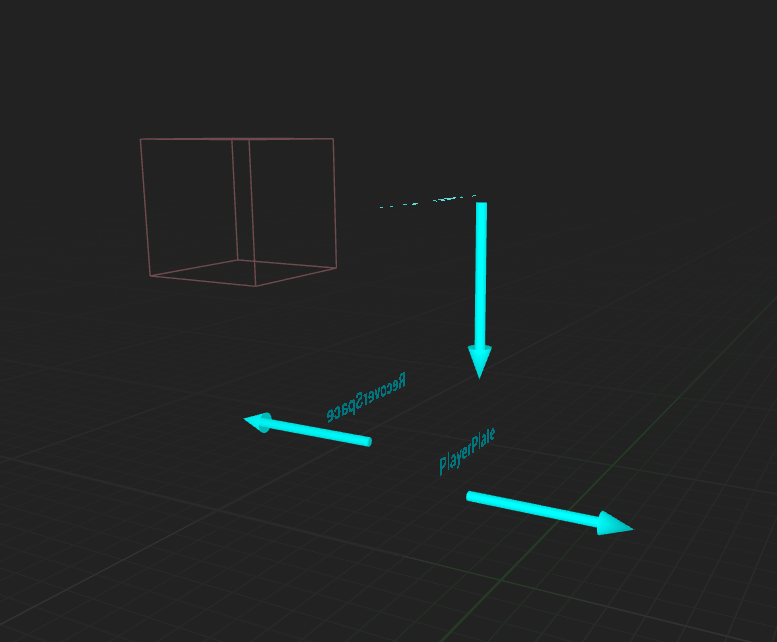
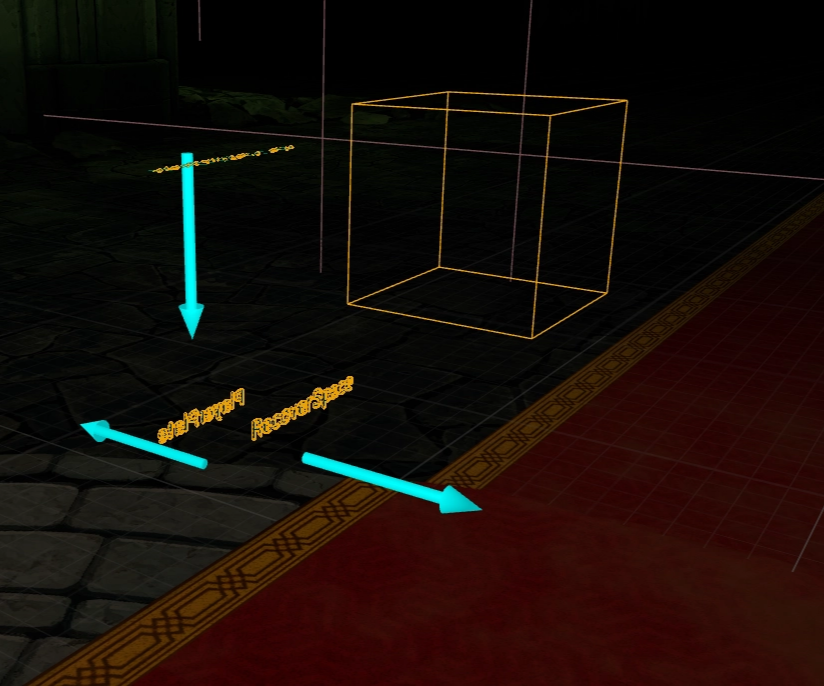
Which DataTable is used:
- Automatic (default): you don't have to configure anything. The TeamSpace looks for a Team Space setup DataTable in the same content folder as the TeamSpace Blueprint. If it finds exactly one, it uses it. If the folder holds more than one, it picks the base table (e.g.
DT_019ADO_TeamSetupis chosen over a variant likeDT_019ADO_TeamSetup_Overlord) and notes the choice in the log. - Manual override: if you want to preview a specific table — a per-role variant, or a table that lives elsewhere — assign it in the TeamSpace's Editor Anchor Preview Data Table field (under the Debug category in the Details panel). An explicit assignment always wins over the automatic search.
Reading the markers:
- A marker appears for every Anchor ID in the table that has a matching Scene Component on the seat. Use it to confirm each element will land where you expect.
A missing marker is the warning sign. If the DataTable lists an Anchor ID but no marker shows up for it, the seat has no Scene Component with that exact name — fix the typo or add the component. This is the same name-matching the game uses at runtime to place the element, so a missing marker means a missing element in game.
Checking anchors inside a build (advanced): The markers above are editor-only. To confirm anchor positions in a packaged or VR build, open the console (~ on an English keyboard, o on a Spanish keyboard), run EnableCheats, then ShowTeamSpaceAnchors. It draws a debug sphere at each anchor that currently holds an element. Optional parameters set the duration (seconds) and radius (cm): ShowTeamSpaceAnchors 120 8. Spheres only — no text labels, since 3D text does not render reliably in VR.
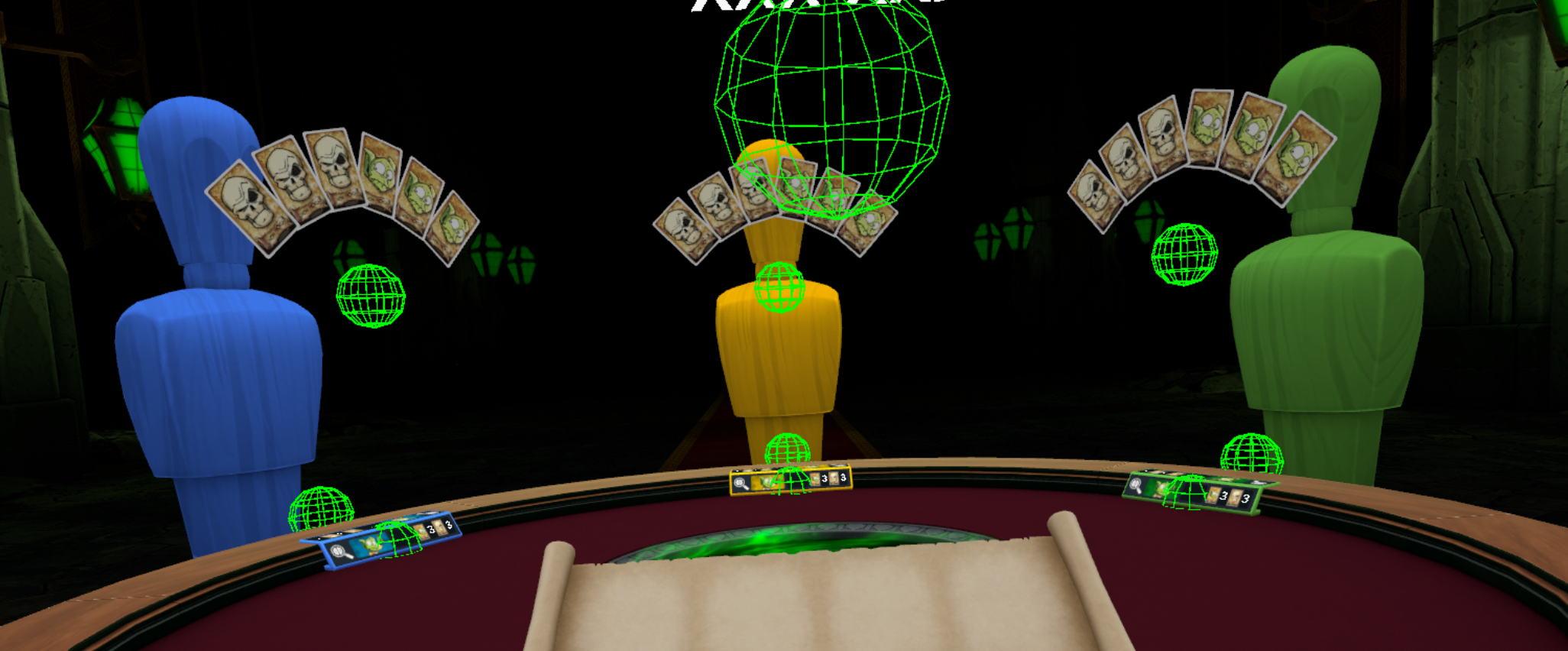
Placing and Removing Elements
Placing an element at an anchor (server only):
PlaceGameElementInTeamSpace(TeamID, AnchorID: "PlayerPlate_Anchor", ElementActor)
This:
- Finds the TeamSpace for the given TeamID
- Looks up the anchor by name
- Moves the element to the anchor's transform
- Records the placement for persistence
Removing an element from an anchor:
RemoveGameElementInTeamSpace(TeamID, AnchorID: "PlayerPlate_Anchor")
Getting an anchor's world position (useful for manual placement):
Transform = GetTeamSpaceAnchorTransform(TeamID, AnchorID: "PlayerPlate_Anchor")
Spawning Elements Directly into Anchors
You can spawn a new element directly into an anchor in one step:
SpawnGameElementInTeamSpace(TeamID, AnchorID, GameElementName, DataToInject)
This creates the element via the Factory and immediately places it at the anchor. Useful for setting up player-specific elements during game deploy.
TeamSpace Data in the Notebook
Each TeamSpace is a GameElement and has its own page in the Notebook. This means you can store and read per-player data using the TeamSpace's page.
Built-in Keys
| Key | What it stores | Set by |
|---|---|---|
| Team | The TeamID assigned to this seat | System (automatic) |
| Seat | The physical seat number (SeatID) | System (automatic) |
| PlayerName | Display name of the occupying player | System (on possession) |
| SharedZAxisForMR | Shared table height used by Mixed Reality alignment so every MR player sits at the same Z. | System (automatic, no manual call) |
Writing Custom Data to TeamSpaces
You can store game-specific data in a TeamSpace's Notebook page using WriteDataToTeamSpace. This function takes a Data Pack — a batch of key-value pairs to write at once.
How to build a Data Pack in Blueprint:
1. Make a DataPack variable (type: AOBData)
2. Add entries to its Ints map:
     Key: "Score"  → Value: 150
     Key: "Gold"   → Value: 500
3. Call WriteDataToTeamSpace(TeamID: 1, DataPack)
The Data Pack supports multiple value types:
- Ints — integer key-value pairs (e.g., Score, Gold, Health)
- Strings — text key-value pairs (e.g., PlayerTitle, FactionName)
- IntList — arrays of integers by key
- NameList — arrays of names by key
All values in the batch are written together, and a single Notebook update notification fires at the end.
Reading data back: Use the standard Notebook functions (ReadInt, ReadString, etc.) with the TeamSpace's GameElement ID. See the Notebook for reading operations.
Note: WriteDataToTeamSpace works from both server and clients (it writes through the Notebook subsystem, which handles replication).
Asymmetric Roles
Some games require different TeamSpace configurations for different player roles. For example, in a dungeon crawler, the "Overlord" player might have a larger play area and different UI than the "Heroes."
Setting Up Asymmetric TeamSpaces
- Create role-specific TeamSpace Blueprints:
BP_[GameID]_TeamSpace_Player(standard players)BP_[GameID]_TeamSpace_[RoleName](special role, e.g.,_Overlord)
- Create role-specific GEDAs and Data Tables:
GEDA_[GameID]_TeamSpace_PlayerGEDA_[GameID]_TeamSpace_[RoleName]DT_[GameID]_TeamSetup_[RoleName](DataTable with role-specific configuration)
- Configure game logic to assign the correct TeamSpace type based on the player's role
Example in production (Altar of Darkness):
DT_019ADO_TeamSetup_Overlord— DataTable with Overlord-specific team setup- Different PlayerArea and PlayerPlate configurations for the Overlord role
Visual Representation and Team Colors
How Team Colors Work
When a TeamSpace is registered with a TeamID, it reads the team color from the GameMaster and applies it to the seat mesh's material:
- The system finds the Dynamic Material Instance on the visual mesh
- It sets the color parameter (default:
FLAT_COLOR) to the team's color - The mesh displays the assigned team color
Requirements:
- The mesh material must have a Vector Parameter matching
MaterialParameterName - The GameMaster must have team colors configured in the Game Config
Show/Hide Visual Mesh
The ShowVisualRepresentation function (server only) controls the seat mesh visibility:
- On possession: mesh hides automatically (player avatar replaces it)
- On unpossession: mesh shows again
- Spectator seats: mesh stays visible even when occupied
This state is replicated — when the server hides the mesh, all clients see it hidden too.
Position Offsets (Mixed Reality)
For Mixed Reality (MR) experiences, players may need their position adjusted so their virtual seat aligns with their real-world chair. This alignment happens automatically — there is nothing to wire in your Blueprint. The system writes the shared Z height to the TeamSpace's SharedZAxisForMR Notebook key so all players in MR mode end up at the same table height.
If you need to read the current alignment height, use the standard Notebook read functions against the TeamSpace's GameElement ID.
Common Workflows
Workflow: Standard Game Setup (2-4 Players)
- Game Config defines number of teams/seats
- Deploy stage: Factory spawns TeamSpace actors (one per seat)
- SetupTeamSpaces stage: System finds all TeamSpace actors, registers them with TeamIDs
- Observers register: PlayerAreas and HandAddonHolders register as observers for their TeamID
- PlayerPossession stage: Each connected player is assigned to an available TeamSpace
- Extra players become spectators
Workflow: Player Joins Mid-Game
- New player connects to the server
- System checks for unoccupied player seats
- If a seat is available → the framework assigns the pawn to that seat (player possession)
- If no seats available → the framework assigns the pawn to a free spectator seat
- Observers are notified, Notebook data syncs to the new player
The actual possession entry points (PossessTeamSpace, PossessSpectatorTeamSpace) are driven by the framework — designers don't call them from Blueprints.
Workflow: Player Swaps Seats
- Server calls
SwapGameElementInTeamSpace(TeamID_A, TeamID_B, AnchorID) - Swappable observers exchange their content
- Each observer receives
OnTeamSpaceElementSwappedwith the new team assignment
Workflow: Saving and Loading
On save:
- TeamSpace assignments (who sits where) are persisted
- Placed elements (what's at each anchor) are persisted
- Observer IDs are persisted (so observers reconnect on load)
On load:
- TeamSpaces are recreated
- Elements are placed back at their anchors
- Observers are reconnected by their ObserverID
- Players are re-assigned to their previous seats
Reacting to Changes (Delegates and Events)
TeamSpace Delegates
These delegates fire on the TeamSpace actor itself:
| Delegate | When it fires | Parameters |
|---|---|---|
| OnTeamSpacePossess | A player sits in this seat | TeamSpace, NewPossessingPawn |
| OnTeamSpaceUnpossess | A player leaves this seat | TeamSpace, PreviousPossessingPawn, bTransition |
| OnTeamSpaceUpdateDelegate | Data changes on this TeamSpace's Notebook page | UpdatedKey, TeamID |
| OnTeamSpaceElementPlacedDelegate | A game element is placed at an anchor on this seat | TeamSpace, AnchorID, GameElementID, PlacedActor |
| OnTeamSpaceElementRemovedDelegate | A game element is removed from an anchor on this seat | TeamSpace, AnchorID, GameElementID |
Tip: If you're already watching one specific TeamSpace from a Blueprint, prefer the TeamSpace Watcher component over these raw actor delegates — it handles late join and resolution races for you.
Manager Delegates
These delegates fire on the TeamSpaces Manager subsystem and cover all teams at once. Use them when you need to react to ANY seat, not a specific one (scoreboards, lobby UIs, debug panels, partner-watching widgets).
| Delegate | When it fires | Parameters |
|---|---|---|
| OnTeamSpaceActorRegisteredDelegate | A TeamSpace actor is registered with the manager | TeamID |
| OnAllTeamSpacesRegisteredDelegate | Every expected TeamSpace has registered (fires once per session) | (none) |
| OnAnyTeamSpacePossessedDelegate | A player sits in any seat | TeamID, Pawn, bIsSpectator |
| OnAnyTeamSpaceUnpossessedDelegate | A player leaves any seat | TeamID, PrevPawn, bTransition, bIsSpectator |
| OnAnyTeamSpaceElementPlacedDelegate | An element is placed at an anchor on any seat | TeamID, AnchorID, GameElementID, PlacedActor |
| OnAnyTeamSpaceElementRemovedDelegate | An element is removed from an anchor on any seat | TeamID, AnchorID, GameElementID |
| OnAnyTeamSpaceNotebookUpdateDelegate | A Notebook key changes on any TeamSpace's page | TeamID, Key |
Tip: Use OnTeamSpaceActorRegisteredDelegate when you need to react to TeamSpaces becoming available (e.g., to set up UI elements that depend on knowing which teams exist). Use OnAllTeamSpacesRegisteredDelegate when you need the complete set ready before doing anything.
Per-team vs cross-team: If you only care about one specific team, attach a TeamSpaceWatcher to your actor — it does the routing for you. If you need to aggregate across teams (scoreboard, lobby), subscribe to the OnAnyTeamSpace* delegates on the subsystem.
Overridable Blueprint Events (on TeamSpace actor)
If you create a custom TeamSpace Blueprint, you can override these events to add per-seat behavior:
| Event | When it fires | Parameters |
|---|---|---|
| OnPossessTeamSpace | After a player sits in this seat | TeamSpace, Pawn |
| OnUnpossessTeamSpace | After a player leaves this seat | TeamSpace, Pawn, bTransition |
Override these in your TeamSpace Blueprint's Event Graph to add custom logic (e.g., play a sound, show a particle effect).
Observer Events
Observers receive these Blueprint events (override in your observer Blueprint):
| Event | When it fires | Available on |
|---|---|---|
| OnTeamSpacePossession | After a player possesses the observed TeamSpace | PlayerArea, HandAddonHolder, custom observers |
| OnTeamSpaceUnpossession | After a player leaves the observed TeamSpace | PlayerArea, HandAddonHolder, custom observers |
| OnTeamSpaceReset | When the framework resets the TeamSpace | PlayerArea, HandAddonHolder, custom observers |
Resetting a seat: Seat reset is framework-driven — the system clears a TeamSpace's state during game restarts or between rounds (the C++ ResetTeamSpace() is not exposed to Blueprints, so you don't call it yourself). React to it by overriding BP_OnTeamSpaceReset or binding the OnTeamSpaceReset event on your observer, where you clean up the seat's visuals/content.
Observers also have bindable delegates for Blueprint event binding (instead of overriding):
| Delegate | When it fires |
|---|---|
| OnTeamSpacePossessionDelegate | Same as OnTeamSpacePossession — use for external binding |
| OnTeamSpaceUnpossessionDelegate | Same as OnTeamSpaceUnpossession — use for external binding |
Custom observers: If you create your own observer, you must override GetObserverID to return a unique ID (typically the GameElement ID). This is required for persistence — the save system uses this ID to reconnect your observer on load.
Subscription Pattern (recommended — use the TeamSpace Watcher)
The shortest correct way to react to your team's TeamSpace from a Blueprint is to add a TeamSpaceWatcher component to your actor and bind its events.
Components:
    + GameElement       (required by the watcher)
    + TeamSpaceWatcher

BeginPlay:
    TeamSpaceWatcher.OnReadyDelegate          → HandleReady
    TeamSpaceWatcher.OnPossessedDelegate      → HandlePossess
    TeamSpaceWatcher.OnUnpossessedDelegate    → HandleUnpossess
    TeamSpaceWatcher.OnElementPlacedDelegate  → HandlePlace      (optional)
    TeamSpaceWatcher.OnElementRemovedDelegate → HandleRemove     (optional)
    TeamSpaceWatcher.OnNotebookUpdateDelegate → HandleNotebook   (optional)

HandleReady(Actor):
    // Snapshot ready — read getters here for one-time setup.
    if TeamSpaceWatcher.GetCurrentPossessingPawn(OutPawn):
        UpdateMyUI(OutPawn)

HandlePossess(Pawn, bIsSpectator):
    UpdateMyUI(Pawn)

HandleUnpossess(PrevPawn, bTransition, bIsSpectator):
    if NOT bTransition:
        ResetMyUI()
sequenceDiagram
    participant YB as Your Blueprint
    participant W as TeamSpaceWatcher
    participant TS as TeamSpace (replicated)

    YB->>W: Bind OnReadyDelegate, OnPossessedDelegate, OnUnpossessedDelegate
    W->>W: Resolution cascade (owner GameElement, TeamKey, TeamSpace registered, target GameElement)
    alt Seat already possessed at Ready time
        W-->>YB: OnPossessedDelegate (FullSync replay)
    end
    W-->>YB: OnReadyDelegate
    Note over TS: Later, player sits...
    TS-->>W: OnTeamSpacePossess
    W-->>YB: OnPossessedDelegate
No late-join check needed. The watcher's FullSync replay emits possession (and placements) right before OnReadyDelegate, so binding OnReadyDelegate + OnPossessedDelegate + OnUnpossessedDelegate covers the "I spawned late" case automatically. If you bind after OnReadyDelegate has already fired, query IsReady() once and call your handler manually — the watcher does not re-fire OnReadyDelegate for late bindings.
Reacting to ANY team
The watcher is single-team by design — one watcher per actor, locked to that actor's TeamKey. If you need a scoreboard, lobby, or debug widget that reacts to events across every team, subscribe to the cross-team delegates on the TeamSpaces Manager subsystem:
| Use case | Bind |
|---|---|
| Scoreboard, lobby roster — react when anyone sits/leaves | OnAnyTeamSpacePossessedDelegate / OnAnyTeamSpaceUnpossessedDelegate |
| Game-start gate — wait until every TeamSpace is registered | OnAllTeamSpacesRegisteredDelegate |
| Aggregate notebook view across teams | OnAnyTeamSpaceNotebookUpdateDelegate |
| Cross-team placement view | OnAnyTeamSpaceElementPlacedDelegate / OnAnyTeamSpaceElementRemovedDelegate |
Don't stack multiple watchers on a single actor to fake multi-team support — go through the subsystem instead.
Querying TeamSpace State
The TeamSpaces Manager provides several Blueprint functions to query the current state of seats:
| Operation | What it does | Returns |
|---|---|---|
GetTeamSpaceActorForTeam(TeamID) | Gets the TeamSpace actor for a specific team | The TeamSpace actor (or none if not registered) |
GetRegisteredTeamSpacesTeamIDs() | Lists all registered TeamIDs | Array of TeamIDs |
GetRegisteredTeamSpacesCount() | How many player seats are registered | Number |
IsRegisteredTeamSpace(TeamID) | Checks if a TeamID has a registered seat | True/False |
IsSpectatorTeamSpace(TeamSpaceActor) | Checks if a given seat is a spectator seat | True/False |
IsPlayerSpectator(Pawn) | Checks if a specific player is in spectator mode | True/False |
GetTeamSpaceGameElementID(TeamID) | Gets the GameElement ID associated with a TeamSpace | True/False + ID |
GetGameElementIDForTeamSpaceAnchor(TeamID, AnchorID) | Gets the GameElement ID for a specific anchor within a TeamSpace | True/False + ID |
"Is anyone sitting in seat X?" From a Blueprint, get the seat actor with GetTeamSpaceActorForTeam(TeamID) and then call IsPossessed() on the actor. (GetPawnPossessingTeamSpace exists in the code but is not Blueprint-callable.)
Example: To show a UI element only when all seats are filled:
AllTeamIDs = GetRegisteredTeamSpacesTeamIDs()
for each TeamID in AllTeamIDs:
    Seat = GetTeamSpaceActorForTeam(TeamID)
    if NOT Seat.IsPossessed():
        return  // Not all seats filled
ShowStartGameButton()
Pawn Integration (Possessor Callbacks)
When a player possesses or leaves a TeamSpace, their pawn (VR avatar) receives callbacks through the Possessor interface. This is how the pawn knows which team it belongs to.
| Callback | When it fires | Use case |
|---|---|---|
| OnTeamSpacePossessed(TeamID, TeamSpace) | Pawn is assigned to a seat | Update local player state, show team UI |
| OnTeamSpaceUnpossessed(TeamSpace) | Pawn is removed from a seat | Clear team-specific state |
| IsPossessingTeamSpace() | Query (returns true/false) | Check if pawn is currently assigned to any seat |
| IsPossessingPlayerTeamSpace() | Query (returns true/false) | Check if pawn is assigned to a player seat (not spectator) |
| ResetPossessorToTeamSpace(TeamSpace) | System requests pawn repositioning | Teleport pawn back to their seat position |
These are already implemented on the VR player pawn — you don't need to set them up. They are useful when creating custom pawn Blueprints that need to react to seat assignment.
Configuration Options
| Property | What it does | Default | Where to set |
|---|---|---|---|
| VisualRepresentationSMComponent | Static mesh showing the seat before a player sits | (none) | Blueprint Components panel |
| MaterialParameterName | Name of the color parameter in the seat material | FLAT_COLOR | Blueprint Details panel |
| bSpectatorTeamSpace | Marks this as a spectator seat (no team assignment) | false | Blueprint Details panel |
| Actions (AOB extension) | Contextual quick-actions that appear when a player interacts with the TeamSpace (e.g., "Sit here" action for manual seat selection). Configure by adding action entries to the Actions component. | (none) | Blueprint Details panel |
| ActivableOwnerComponent (AOB extension) | Enables activation via VR trigger press. Required for the Actions component to work — when a player points at the TeamSpace and presses trigger, the configured action executes. | (auto-created) | Blueprint Details panel |
| SeatID | Physical seat number on the table. Configured per-team in the GameMaster team config (FGameMasterTeamConfig.SeatID), not on the TeamSpace actor directly. Read at runtime via GetSeatID(). | -1 | GameMaster team config (see Game Master) |
| TeamID | Logical team — assigned at runtime by the system when the seat is registered | (auto) | Not manually set |
Naming Conventions
| Type | Pattern | Example |
|---|---|---|
| Player Blueprint | BP_[GameID]_TeamSpace_Player | BP_002TBI_TeamSpace_Player |
| Spectator Blueprint | BP_[GameID]_TeamSpace_Spectator | BP_000AOB_TeamSpace_Spectator |
| Role-specific Blueprint | BP_[GameID]_TeamSpace_[RoleName] | BP_019ADO_TeamSpace_Overlord |
| Data Asset (GEDA) | GEDA_[GameID]_TeamSpace_[Type] | GEDA_004RGT_TeamSpace_Player |
| Team Setup DataTable | DT_[GameID]_TeamSetup[_Variant] | DT_019ADO_TeamSetup_Overlord |
Folder Structure
Content/AOB/BoardGames/[GameID]/TeamSpaces/
├── BP_[GameID]_TeamSpace_Player.uasset
├── BP_[GameID]_TeamSpace_Spectator.uasset       (if custom spectator needed)
├── BP_[GameID]_TeamSpace_[RoleName].uasset       (if asymmetric roles)
├── GEDA_[GameID]_TeamSpace_Player.uasset
├── GEDA_[GameID]_TeamSpace_Spectator.uasset      (if custom spectator needed)
├── GEDA_[GameID]_TeamSpace_[RoleName].uasset     (if asymmetric roles)
└── DT_[GameID]_TeamSetup[_Variant].uasset        (if asymmetric roles)
Common Mistakes (Anti-Patterns)
Mistake 1: Confusing SeatID with TeamID
❌ WRONG: Using SeatID and TeamID interchangeably.
// "I set SeatID to 1, why is the player TeamID 3?"
✅ CORRECT: Understand the distinction.
- SeatID = physical position on the table (which chair)
- TeamID = logical team assignment (which player/team in game rules)
- They CAN be different. Seat 0 might be TeamID 3 depending on game configuration.
WHY: The system decouples physical position from logical identity. A 4-player game might always use the same 4 chairs, but which chair is "Player 1" can change between sessions.
Mistake 2: Destroying Content During a Transition
❌ WRONG: Ignoring the bTransition parameter in unpossession handlers.
OnTeamSpaceUnpossession(Pawn, bTransition):
    DestroyAllPlayerElements()    // Destroys everything, even during seat swaps!
✅ CORRECT: Check bTransition before cleanup.
OnTeamSpaceUnpossession(Pawn, bTransition):
    if NOT bTransition:
        DestroyAllPlayerElements()    // Only clean up on real exit
WHY: During a transition (restart, seat swap), the system will re-possess the TeamSpace shortly. Destroying elements causes data loss and broken state.
Mistake 3: Forgetting the GameElement component on a TeamSpaceWatcher owner
❌ WRONG: Adding a TeamSpaceWatcher to an actor that has no GameElement component.
Components:
    + TeamSpaceWatcher    // no GameElement!
✅ CORRECT: Always pair the watcher with a GameElement component.
Components:
    + GameElement         // required
    + TeamSpaceWatcher
WHY: The watcher resolves the actor's TeamKey through the GameElement's Notebook page. Without a GameElement component the watcher cannot find a TeamKey, so it logs a Map Check warning at design time and stays inert at runtime — your delegates never fire and nothing crashes, which makes it hard to notice.
Mistake 4: Using legacy actor delegates instead of the TeamSpaceWatcher
❌ WRONG: Subscribing directly to the actor delegates and patching up late join by hand.
BeginPlay:
    TeamSpace = GetTeamSpaceActorForTeam(MyTeamID)
    TeamSpace.OnTeamSpacePossess → HandlePossess
    if TeamSpace.IsPossessed():
        HandlePossess(TeamSpace, TeamSpace.PossessingPawn)
✅ CORRECT: Use the TeamSpaceWatcher component and bind OnReadyDelegate + OnPossessedDelegate.
Components:
    + GameElement
    + TeamSpaceWatcher

BeginPlay:
    TeamSpaceWatcher.OnReadyDelegate     → HandleReady
    TeamSpaceWatcher.OnPossessedDelegate → HandlePossess
WHY: The legacy pattern needs you to know MyTeamID already, guard against the TeamSpace not being registered yet on the client, manually check IsPossessed for late join, and hope no replication race trips you up. The watcher folds all four concerns into one component and replays current possession through the typed delegates before OnReadyDelegate fires — every client sees the right state on first frame.
Mistake 5: Setting bSpectatorTeamSpace on Player Seats
❌ WRONG: Setting bSpectatorTeamSpace = true on a regular player seat.
// Player sits but mesh doesn't hide, no team color, observers not notified
✅ CORRECT: Only spectator-specific seats should have this flag.
WHY: The spectator flag changes multiple behaviors — mesh visibility, observer notification, and GameMaster registration all behave differently for spectator seats.
Troubleshooting
Problem: Player doesn't appear at the correct seat
Symptom: Player spawns at the wrong position, or two players end up at the same seat.
Cause: SeatID mismatch between the TeamSpace actor and the game configuration.
Fix: SeatID is not stored on the TeamSpace actor — it comes from the Game Master team configuration (FGameMasterTeamConfig.SeatID). Verify that each team's configured SeatID is unique and matches the physical seat the player should occupy. See the Game Master guide for where SeatID is authored.
Problem: Team color doesn't change
Symptom: The seat mesh stays its default color instead of showing the team color.
Cause: The material parameter name doesn't match, or the material doesn't have a dynamic material instance.
Fix:
- Check that
MaterialParameterNamematches the actual parameter name in your material (default:FLAT_COLOR) - Ensure the material supports dynamic instances (is not a constant material)
- Verify the GameMaster has team colors configured for the relevant TeamIDs
Problem: Seat mesh doesn't hide when player sits
Symptom: The chair/marker mesh stays visible even after a player possesses the seat.
Cause: The bSpectatorTeamSpace flag is accidentally set to true, or ShowVisualRepresentation is being called from a client.
Fix: Check that bSpectatorTeamSpace is false for player seats. Remember that ShowVisualRepresentation is server-only.
Problem: My TeamSpaceWatcher never fires events
Symptom: OnReadyDelegate never fires; possession events never reach my Blueprint.
Cause: The watcher resolution cascade is missing a prerequisite, so the watcher stays inert.
Fix:
- Check the actor has a sibling
GameElementcomponent (a Map Check warning shows up in editor if missing). - Check the actor's Notebook page has a
TeamKeyentry — without it the watcher cannot resolve which seat to watch. - Confirm the resolved TeamID maps to a registered TeamSpace (
IsRegisteredTeamSpace(TeamID)returns true). - If you only need to know "is the watcher inert?", call
IsReady()from a debug node.
Legacy observers (old BPs): If you are maintaining a Blueprint that still uses RegisterToTeamSpacePossession, verify (a) the registration call ran on the server, (b) the TeamID matches the TeamSpace, and (c) the observer implements the Possession Observer interface. Plan to migrate the BP to a TeamSpaceWatcher to retire this checklist.
Problem: Elements disappear when loading a saved game
Symptom: Player elements (cards, tokens) that were placed at anchors are gone after load.
Cause: Observer IDs weren't properly set, so the persistence system can't reconnect observers.
Fix: Ensure each observer returns a valid, unique GetObserverID() value. This ID is what the persistence system uses to re-link observers to their TeamSpaces on load.
Problem: Spectator can't join
Symptom: A user connecting to a full game gets stuck or crashes instead of becoming a spectator.
Cause: No spectator TeamSpaces are available in the level.
Fix: Add at least one TeamSpace instance with bSpectatorTeamSpace = true to your level or deploy configuration.
Quick Diagnostic Checklist
When something isn't working, check in order:
- SeatIDs are unique — no two TeamSpaces share the same SeatID
- TeamIDs match — observers, elements, and TeamSpaces all reference the same TeamID
- bSpectatorTeamSpace is correct —
falsefor player seats,truefor spectator seats - MaterialParameterName matches — the material parameter name matches the actual material
- Watcher prerequisites — actors using
TeamSpaceWatcherhave a siblingGameElementcomponent and aTeamKeyin the Notebook page - Place / Remove invoked on the server side — these write replicated state authoritatively
- Late-join handled by the watcher — if you bound directly to actor delegates instead of using the watcher, you missed the watcher's FullSync; migrate or check
IsPossessed()manually
Tips and Best Practices
- Keep SeatID and TeamID conceptually separate even when they happen to match. This makes your game resilient to configuration changes.
- Always provide at least one spectator seat — even for games that "shouldn't have spectators." It prevents crashes when extra users join.
- Use the Notebook for all per-player data — scores, resources, states. The TeamSpace page is the single source of truth.
- Test with more players than seats — verify spectator flow works correctly.
- Test late-join scenarios — have a player join after possession is complete to verify observers and data sync.
- Use meaningful anchor names —
PlayerPlate_Anchoris better thanAnchor1. Other systems reference these by name. - Don't modify TeamSpace state directly — always go through the TeamSpaces Manager subsystem.
Related Systems
| System | Relationship | Guide |
|---|---|---|
| Notebook | Stores per-player data in TeamSpace pages | Notebook |
| Game Master | Provides team colors and player registration | Game Master |
| Game Stages & Deploy | Spawns TeamSpaces and triggers possession | Game Stages & Deploy (guide pending) |
| Floating Player Area | Visual player area, acts as observer | Floating Player Area (guide pending) |
| Player Plates | Player identification, placed at anchors | Player Plates (guide pending) |
| Factory | Creates TeamSpace actors from data assets | Factory |
| Actions System | Wires the "Sit here" contextual quick-action on AOBTeamSpaceActor | Actions System (guide pending) |
| Persistence | Saves/loads TeamSpace assignments and placed elements | Persistence (guide pending) |
Quick Reference Cheat Sheet
Blueprint-callable nodes only. Functions that exist only in C++ (player assignment, pawn lookup, spectator possession) are driven by the framework — designers don't call them.
| I want to... | Do this |
|---|---|
| Create a player seat | Create a Blueprint inheriting from AOBTeamSpaceActor, set up mesh and anchors |
| Create a spectator seat | Same as above but set bSpectatorTeamSpace = true |
| React when a player sits in my team's seat | Add a TeamSpaceWatcher component, bind OnPossessedDelegate (+ OnReadyDelegate for initial state) |
| React when a player leaves my team's seat | TeamSpaceWatcher.OnUnpossessedDelegate |
| React when ANY player sits/leaves | OnAnyTeamSpacePossessedDelegate / OnAnyTeamSpaceUnpossessedDelegate on the TeamSpaces Manager |
| Wait until every TeamSpace is ready | OnAllTeamSpacesRegisteredDelegate on the TeamSpaces Manager |
| React when a seat is registered | OnTeamSpaceActorRegisteredDelegate on the TeamSpaces Manager |
| Place an element at a player's area | PlaceGameElementInTeamSpace(TeamID, AnchorID, Actor) |
| Remove an element from a player's area | RemoveGameElementInTeamSpace(TeamID, AnchorID) |
| Spawn an element directly into a seat | SpawnGameElementInTeamSpace(TeamID, AnchorID, ElementName, Data) |
| Swap two players' elements | SwapGameElementInTeamSpace(TeamID_A, TeamID_B, AnchorID) |
| Store player data (score, gold) | Build an AOBData pack with Ints entries, call WriteDataToTeamSpace(TeamID, DataPack) |
| Read player data | Notebook ReadInt(GameElementID, Key) with the TeamSpace's GameElement ID |
| Check if a seat is occupied | TeamSpace.IsPossessed() (on the actor) |
| Check if local player is spectator | BranchLocalPlayerTeamSpaceState() (exec-pin branching node) |
| Check if a given player pawn is a spectator | IsPlayerSpectator(Pawn) |
| Check if a given seat is a spectator seat | IsSpectatorTeamSpace(TeamSpaceActor) |
| List all registered teams | GetRegisteredTeamSpacesTeamIDs() |
| Count how many seats exist | GetRegisteredTeamSpacesCount() |
| Check if a TeamID has a seat | IsRegisteredTeamSpace(TeamID) |
| Get the seat actor for a team | GetTeamSpaceActorForTeam(TeamID) |
| Get a seat actor's TeamID | TeamSpace.GetTeamID() (on the actor; or GetWatchedTeamID() from a watcher) |
| Get the anchor transform inside a seat | GetTeamSpaceAnchorTransform(TeamID, AnchorID) |
| Get the GameElement ID for a TeamSpace | GetTeamSpaceGameElementID(TeamID) |
| Get the GameElement ID at a specific anchor | GetGameElementIDForTeamSpaceAnchor(TeamID, AnchorID) |
| Write data to a seat's Notebook page | WriteDataToTeamSpace(TeamID, Data) |
For questions or edge cases, contact the Code team.