StartGame widgets
Overview
The Start Game Widgets system is a modular UI framework that appears at the beginning of each board game session. It allows players to configure game modes, select seats, choose teams/characters, and confirm their selections before the game starts.
The system follows a sequential flow where players navigate through different selection screens using a master widget (UAOBStartGameWidget) that contains a WidgetSwitcher to manage the different selection steps.
Flow Order
- Mode Selection - Choose the game mode (e.g., Solo, Competitive, Cooperative)
- Modifier Selection - Enable/disable game modifiers or variants
- Seat Selection - Choose a player seat position
- Team/Character Selection - Select team or character assignment
- Confirmation - Review all players and their selections, then start the game
Note: Not all games require every step. Some games may skip Mode or Modifier selection, and others combine Seat and Team selection into a single widget.
Widget classes
Widget Architecture
Class Hierarchy
UUserWidget
├── UAOBStartGameWidget (Master Widget)
├── UAOBModeSelectorWidget
├── UAOBModifierSelectorWidget
├── UAOBSelectSeatWidget
│   └── UAOBSelectSeatTeamWidget (Combined Seat + Team)
├── UAOBSelectTeamWidget
├── UAOBSelectRoleWidget
├── UAOBConfirmSelectionWidget
├── UAOBSelectButton
├── UAOBSelectCheckbox
├── UAOBStartGamePlayerWidget
├── UAOBDescriptionWidget
└── UAOBStartGameConfirmationWidget
Actor Container
AAOBStartGameActor is the world actor that hosts and manages the Start Game widgets. It contains multiple UWidgetComponent slots for:
- Main Start Game Widget
- Players List
- Mode Description
- Seat Description
- Team Description
UAOBStartGameWidget (Master Widget)
The master container widget that orchestrates the entire Start Game flow.
Required Bound Widgets
| Widget Name | Type | Binding | Description |
|---|---|---|---|
WidgetSwitcher | UWidgetSwitcher | BindWidget | Container that holds and switches between selection widgets |
ModeSelectorWidget | UAOBModeSelectorWidget | BindWidgetOptional | First mode selector (if game has modes) |
SecondModeSelectorWidget | UAOBModeSelectorWidget | BindWidgetOptional | Second mode selector (for games with two mode choices) |
SelectRoleWidget | UAOBSelectRoleWidget | BindWidgetOptional | Role/character selection widget |
SelectSeatWidget | UAOBSelectSeatWidget | BindWidgetOptional | Seat position selection widget |
SelectTeamWidget | UAOBSelectTeamWidget | BindWidgetOptional | Team selection widget |
ConfirmSelectionWidget | UAOBConfirmSelectionWidget | BindWidgetOptional | Final confirmation and player list widget |
Slash/Progress Indicator Widgets (Optional)
These widgets display visual progress through the selection steps:
| Widget Name | Type | Description |
|---|---|---|
LashImageMode / LashTextMode | UImage / UTextBlock | Mode step indicator |
LashImageSecondMode / LashTextSecondMode | UImage / UTextBlock | Second mode step indicator |
LashImageSeat / LashTextSeat | UImage / UTextBlock | Seat step indicator |
LashImageChar / LashTextChar | UImage / UTextBlock | Character/Team step indicator |
Blueprint Configurable Properties
| Property | Type | Category | Description |
|---|---|---|---|
PlayingGameRulesState | FName | GameRules | The game rules state to transition to when the start flow completes. If empty, the game rules state won't change. |
SlashUnselectedBrush | FSlateBrush | SlashStyle | Visual style for unselected progress indicators |
SlashSelectedBrush | FSlateBrush | SlashStyle | Visual style for completed progress indicators |
SlashActiveBrush | FSlateBrush | SlashStyle | Visual style for the currently active progress indicator |
Blueprint Implementable Events
BP_OnSeatSelected(Index)- Called when a seat is selectedBP_OnTeamSelected(Index)- Called when a team is selectedBP_ChangeSelection(bIsDummy)- Called when changing selection (for dummy players)BP_PreStartGame()- Called before the game starts
Delegates
OnJoinGameDelegate- Fired when player joins the gameOnTryStartGameDelegate- Fired when attempting to start the gameOnModeSelectedDelegate- Fired when a mode is selectedOnSeatSelectedDelegate- Fired when a seat is selectedOnModifierChangedDelegate- Fired when a modifier value changesOnSeatChangedDelegate- Fired when seat assignment changesOnTeamSelectedDelegate- Fired when a team is selectedOnWidgetChangedDelegate- Fired when switching between widgetsOnSummaryReachedDelegate- Fired when reaching the confirmation screen
UAOBModeSelectorWidget
Widget for selecting game modes (e.g., Solo, Competitive, Cooperative).
Required Bound Widgets
| Widget Name | Type | Binding | Description |
|---|---|---|---|
ConfirmButton | UAOBButtonBase | BindWidget | Button to confirm mode selection |
BackButton | UAOBButtonBase | BindWidgetOptional | Button to go back to previous step |
ModesOverlay | UOverlay | BindWidget | Container for mode selection buttons |
ModesSwitcher | UWidgetSwitcher | BindWidgetOptional | Alternative switcher-based mode display |
RightButton / LeftButton | UAOBButtonBase | BindWidgetOptional | Navigation buttons for switcher mode |
ClientWaitText | UTextBlock | BindWidget | Text shown to non-host clients while waiting |
Blueprint Configurable Properties
| Property | Type | Description |
|---|---|---|
bShowDescription | bool | Whether to show a description widget when a mode is selected |
Blueprint Implementable Events
BP_OnModeButtonPressed(Index)- Called when a mode button is pressedBP_OnModeDeploy(Index)- Called when a mode is deployed/confirmed
Delegates
OnConfirmModeDelegate- Fired when mode selection is confirmedOnModeSelectedDelegate- Fired when a mode is selected (before confirmation)
UAOBModifierSelectorWidget
Widget for enabling/disabling game modifiers or variants.
Required Bound Widgets
| Widget Name | Type | Binding | Description |
|---|---|---|---|
ConfirmButton | UAOBButtonBase | BindWidget | Button to confirm modifier selection |
BackButton | UAOBButtonBase | BindWidgetOptional | Button to go back |
ModifiersOverlay | UOverlay | BindWidget | Container for modifier checkboxes |
ClientWaitText | UTextBlock | BindWidget | Text shown to non-host clients while waiting |
ClientWaitText_1 | UTextBlock | BindWidgetOptional | Additional wait text (optional) |
Blueprint Implementable Events
BP_OnModifierButtonChanged(Index, bIsChecked)- Called when a modifier checkbox state changesBP_GetModifierNotebookKey(Index)- Returns the notebook key for a modifier index
Delegates
OnConfirmModifiersDelegate- Fired when modifiers are confirmedOnModifierChangedDelegate- Fired when any modifier value changes
UAOBSelectSeatWidget
Widget for selecting a player seat position.
Required Bound Widgets
| Widget Name | Type | Binding | Description |
|---|---|---|---|
ConfirmSeatButton | UAOBButtonBase | BindWidget | Button to confirm seat selection |
SpectatorButton | UAOBButtonBase | BindWidget | Button to join as spectator |
BackButton | UAOBButtonBase | BindWidgetOptional | Button to go back |
WarningBorder | UBorder | BindWidget | Container for warning messages |
WarningText | UTextBlock | BindWidget | Text display for warnings |
Overlay | UOverlay | BindWidget | Container for seat selection buttons |
Blueprint Configurable Properties
| Property | Type | Description |
|---|---|---|
SoloModeSeatID | int32 | The seat ID to auto-select in solo mode (default: 2) |
WaitingText | FText | Text displayed while waiting for seat assignment |
FailSelectText | FText | Text displayed when seat selection fails |
Delegates
OnConfirmSeatButtonPressedDelegate- Fired when seat is confirmedOnSeatButtonPressedDelegate- Fired when a seat button is pressedOnSpectatorButtonPressedDelegate- Fired when spectator button is pressedOnBackButtonPressedDelegate- Fired when back button is pressedOnSeatChangedDelegate- Fired when seat assignment changes
UAOBSelectSeatTeamWidget
Combined widget for selecting both seat and team simultaneously. Extends UAOBSelectSeatWidget.
This widget is used when games require seat and team to be selected together (e.g., each seat belongs to a specific team).
Uses UAOBSelectSeatAndTeamButton instead of regular UAOBSelectButton for combined seat+team selection.
UAOBSelectTeamWidget
Widget for selecting a team (when separate from seat selection).
Required Bound Widgets
| Widget Name | Type | Binding | Description |
|---|---|---|---|
ConfirmTeamButton | UAOBButtonBase | BindWidget | Button to confirm team selection |
BackButton | UAOBButtonBase | BindWidget | Button to go back |
ButtonsPanelWidget | UPanelWidget | BindWidget | Container for team selection buttons |
WarningBorder | UBorder | BindWidget | Container for warning messages |
WarningText | UTextBlock | BindWidget | Text display for warnings |
Blueprint Configurable Properties
| Property | Type | Description |
|---|---|---|
WaitingText | FText | Text displayed while waiting for team assignment |
FailSelectText | FText | Text displayed when team selection fails |
Delegates
OnTeamButtonPressedDelegate- Fired when a team button is pressedOnConfirmTeamButtonPressedDelegate- Fired when team is confirmedOnBackButtonPressedDelegate- Fired when back button is pressed
UAOBSelectRoleWidget
Widget for selecting a character role.
Required Bound Widgets
| Widget Name | Type | Binding | Description |
|---|---|---|---|
Overlay_Buttons | UOverlay | BindWidget | Container for role selection buttons |
Button_Spectator | UAOBButtonBase | BindWidget | Button to join as spectator |
Button_Confirm | UAOBButtonBase | BindWidget | Button to confirm role selection |
Button_Back | UAOBButtonBase | BindWidget | Button to go back |
Blueprint Readable Properties
PlayerName(FName) - Current player's namebIsDummy(bool) - Whether selecting for a dummy playerDummyCount(int32) - Number of dummy players
Blueprint Implementable Events
BP_OnRoleConfirmed(SelectedRole)- Called when a role is confirmed
Delegates
OnButtonSpectatorPressedDelegate- Fired when spectator button is pressedOnButtonBackPressedDelegate- Fired when back button is pressedOnButtonConfirmPressedDelegate- Fired when confirm button is pressed
UAOBConfirmSelectionWidget
Final widget showing all players, their selections, and game start controls.
Required Bound Widgets
| Widget Name | Type | Binding | Description |
|---|---|---|---|
PlayerListContent | UPanelWidget | BindWidgetOptional | Container for player list items |
TopText | UTextBlock | BindWidget | Header text |
TopTextWaiting | UTextBlock | BindWidget | Text shown while waiting for other players |
WarningText | UTextBlock | BindWidget | Warning message display |
WarningMarginBox | USizeBox | BindWidget | Container for warning layout |
ReadyButton | UAOBButtonBase | BindWidget | Button to toggle ready state |
StartGameButton | UAOBButtonBase | BindWidget | Button to start the game (host only) |
JoinGameButton | UAOBButtonBase | BindWidget | Button to join an in-progress game |
ChangeSelectionButton | UAOBButtonBase | BindWidget | Button to go back and change selections |
AddDummyButton | UAOBButtonBase | BindWidget | Button to add a dummy player |
WarningBox | UHorizontalBox | BindWidget | Container for warning UI |
ButtonsSwitcher | UWidgetSwitcher | BindWidget | Switches between Ready/Start button states |
StartWaitSwitcher | UWidgetSwitcher | BindWidget | Switches between Start and Waiting states |
Delegates
OnStartGameButtonPressedDelegate- Fired when start game is pressedOnTryStartGameButtonPressedDelegate- Fired when attempting to startOnJoinGameButtonPressedDelegate- Fired when join game is pressedOnChangeSelectionButtonPressedDelegate- Fired when change selection is pressedOnReadyChangedDelegate- Fired when ready state changes
Support Widgets
UAOBSelectButton
Reusable button widget for selection options.
Blueprint Configurable Properties
| Property | Type | Description |
|---|---|---|
bAlwaysDisable | bool | If true, button is always disabled |
Index | int32 | Index identifier for this button |
Text | FText | Display text for the button |
bShowPlayerName | bool | Whether to show player name on button |
PressedSound | FSlateSound | Sound to play when pressed |
HoveredSound | FSlateSound | Sound to play when hovered |
UAOBSelectCheckbox
Checkbox widget for modifier toggles.
Blueprint Configurable Properties
| Property | Type | Description |
|---|---|---|
Index | int32 | Index identifier for this checkbox |
Image | UTexture2D* | Icon image for the modifier |
Title | FText | Title text for the modifier |
Description | FText | Description text for the modifier |
UAOBStartGamePlayerWidget
Widget representing a single player in the confirmation list.
Blueprint Configurable Properties
| Property | Type | Category | Description |
|---|---|---|---|
SeatIcons | TArray<FSlateBrush> | Config | Icons for each seat position |
CharIcons | TArray<FSlateBrush> | - | Icons for each character/team |
NotReadyIcon | FSlateBrush | Config | Icon shown when player is not ready |
ReadyIcon | FSlateBrush | Config | Icon shown when player is ready |
SpectatorIcon | FSlateBrush | Config | Icon shown for spectators |
DummyIcon | FSlateBrush | Config | Icon shown for dummy players |
Blueprint Implementable Events
SetupFinished()- Called after setup is completeBP_SetCharText(Index)- Called to set character text display
UAOBDescriptionWidget
Widget for displaying descriptions of modes, seats, or teams.
Blueprint Implementable Events
BP_OnSelected(Index)- Called when a selection is made to update the description
AAOBStartGameActor
The actor that hosts all Start Game widgets in the world.
Blueprint Configurable Components
| Component | Type | Description |
|---|---|---|
SceneRootComponent | USceneComponent | Root component |
SessionConfigWidgetComp | UWidgetComponent | Session configuration widget |
StartGameWidgetComp | UAOBDialogSpawnerWidgetComponent | Main start game widget |
PlayersListWidgetComp | UWidgetComponent | Players list display |
ModeDescriptionWidgetComp | UWidgetComponent | Mode description display |
GameDescriptionWidgetComp | UWidgetComponent | Game description display |
SeatDescriptionWidgetComp | UWidgetComponent | Seat description display |
TeamDescriptionWidgetComp | UWidgetComponent | Team description display |
StartGameConfirmationWidgetClass | TSubclassOf<UUserWidget> | Widget class for start game confirmation dialog |
Blueprint Implementable Events
BO_OnJoin()- Called when the player joins the game
Implementation Guide
The Game Creation Wizard is responsible for creating the basic widgets needed to configure a StartGame with a selection of seats and teams.
TODO (from Notion): link pending.
In the configuration, if we select "Has Team Selection," a seat selector and a team selector will be created. If we do not select this option, a seat selector will be created and the team will be assigned to the seat.
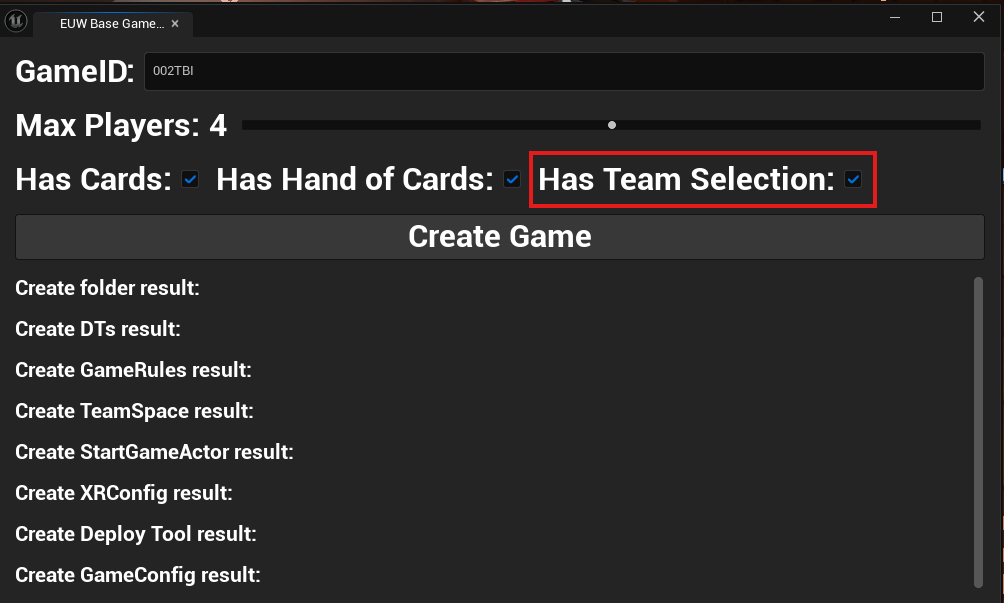
These widgets are created together with an Actor already configured to contain those widgets. BP_002TBI_StartGameActor
These widgets are created with a basic format for AllOnBoard!, so you will need to modify their appearance to display the icons for the game you are creating.
Adding Mode Selector
The Mode Selector Widget is a widget that contains buttons that, when pressed, trigger an event with the button index, which we then use to configure the mode in its Event Graph.
-
Find the base WBP for the ModeSelector
WBP_000AOB_ModeSelectorinContent/AOB/Core/UI/StartGame/ -
Copy and paste it in your game UI/StartGame folder
Content/AOB/BoardGames/002TBI/UI/StartGame/and rename it with your game ID:WBP_002TBI_ModeSelector -
This widget has 2 mode selection buttons pre configured
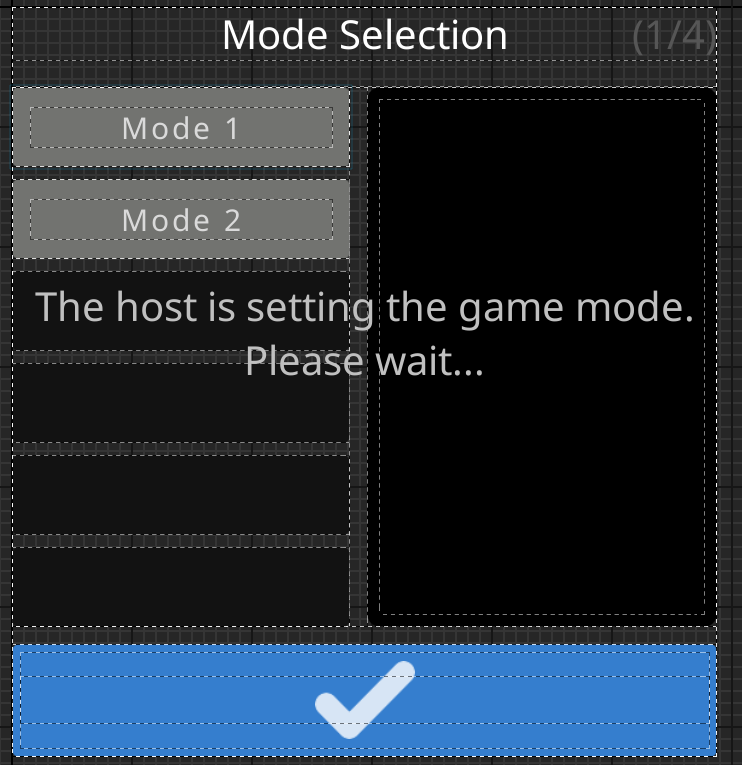
-
If you need to add or remode game modes you can replace the "GameMode_EmptyButton" with a Mode button by copying and renaming it (we are using the
WBP_000AOB_SelectSeatButton).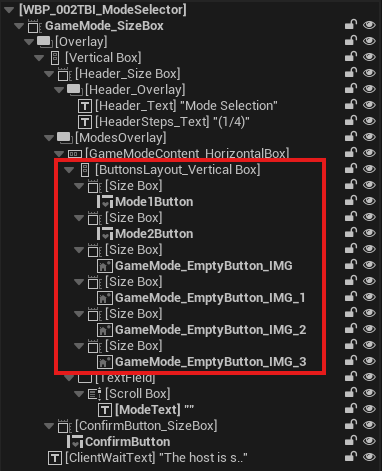
-
In the button details you have to change his index to the next free index and you can change the Button text under the AOBSelect Button section
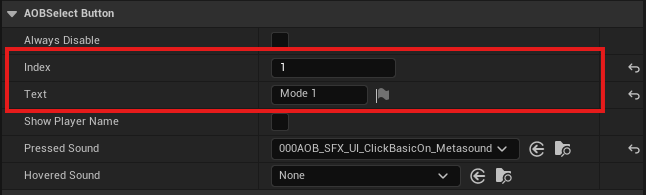
-
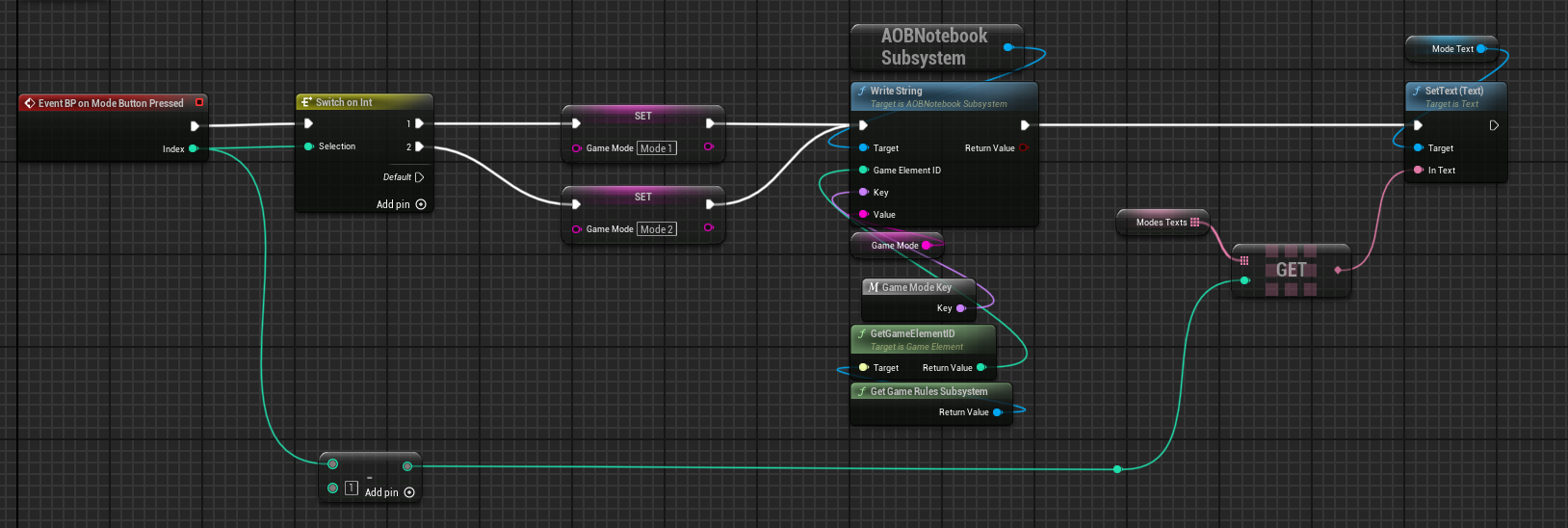
In EventGraph, the selector is configured for two modes called "Mode1" and "Mode2." Here, you must add a pin for each game mode button and set the "GameMode" variable to the name of the game mode you want to assign to that button.
-
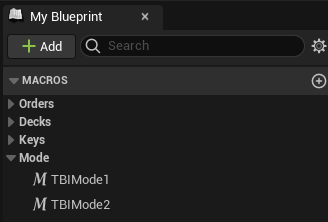
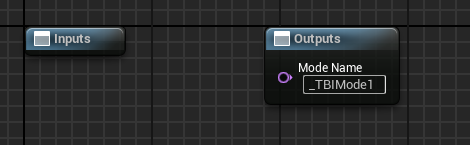
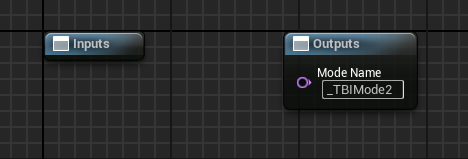
We configure the names of the modes in the "CustomKeys" MacroLibrary of the games. Here we add a macro for each game mode under the "Modes" category and configure those macros to return the name of the mode we want. This way, whenever we want to check the game mode, we can use these macros to return the name of the mode directly.
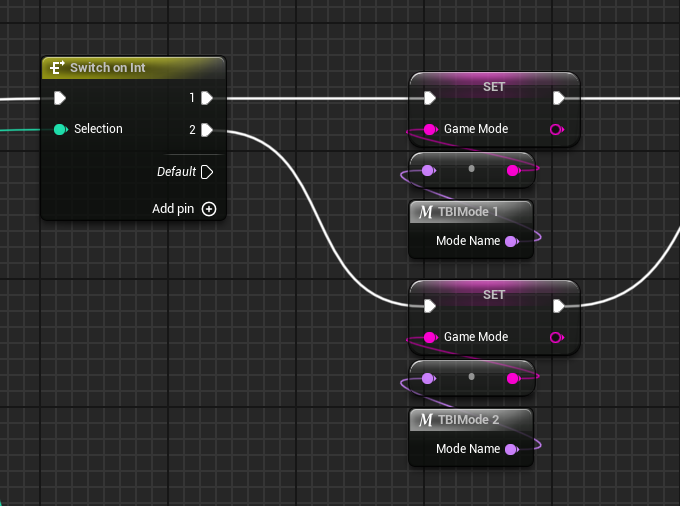
-
Finally, we open the general StartGame widget and add the ModeSelector to the WidgetSwitcher. This must be placed above the Seat selection, as it is the first selector that must appear before allowing all players to choose their seats.
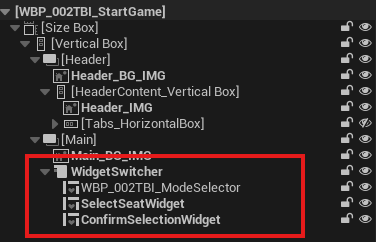
Adding Modifier Selector
The modifier selector widget is a widget designed to activate optional features in a game. It has checkboxes designed to enable or disable these features.
-
Find the base WBP for the ModifierSelector
WBP_000AOB_ModifierSelectorinContent/AOB/Core/UI/StartGame/ -
Copy and paste it in your game UI/StartGame folder
Content/AOB/BoardGames/002TBI/UI/StartGame/and rename it with your game ID:WBP_002TBI_ModifierSelector -
This widget has 2 modifier selection checkbox pre configured
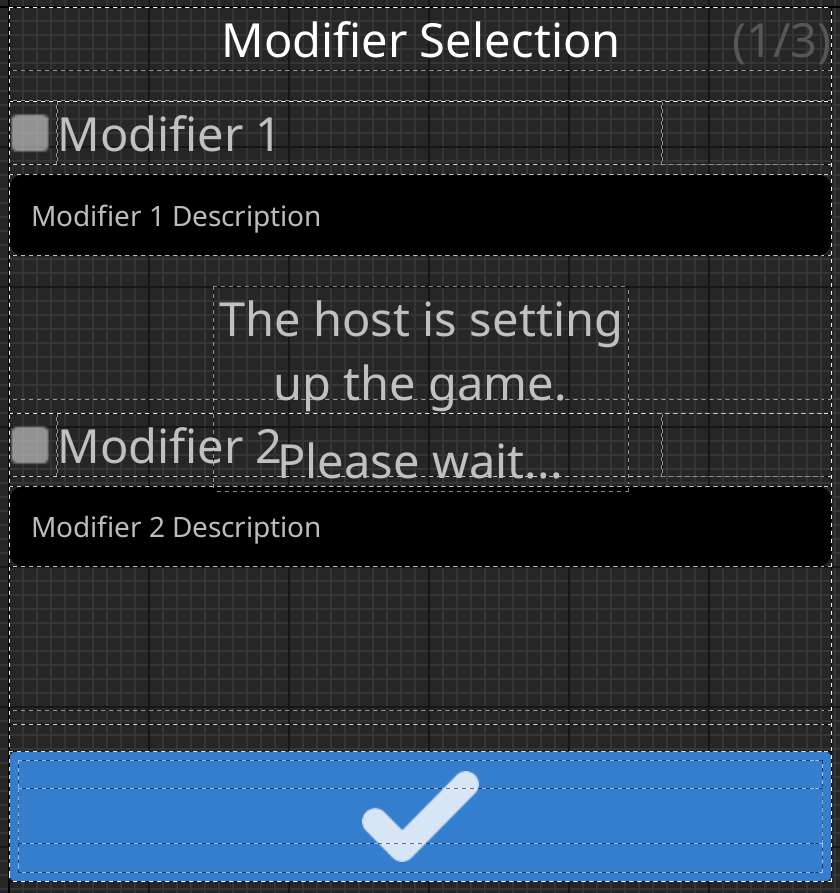
-
You can remove or add more
WBP_000AOB_ModifierCheckboxas you wish. You can also modify the appearance of the widget as long as the checkboxes are inside the ModifiersOverlay. -
In the CheckBox Details, under the AOBSelect Checkbox section you can configure the checkbox Index, Title and Description. It is importat to set a diferent index for all modifiers.
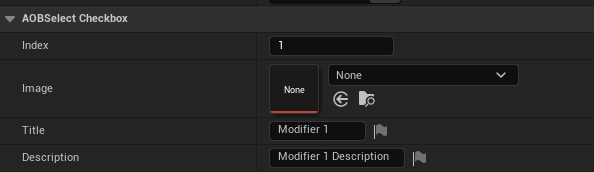
- In the EventGraph you can read the event "BPOnModifierButtonChanged" or Bind "OnCheckModified" event from the checkboxes to detect when the checkbox has changed. This widget notify internally the game rules notebook to change the status of the modifier, this events are used to managa the widget behavior.
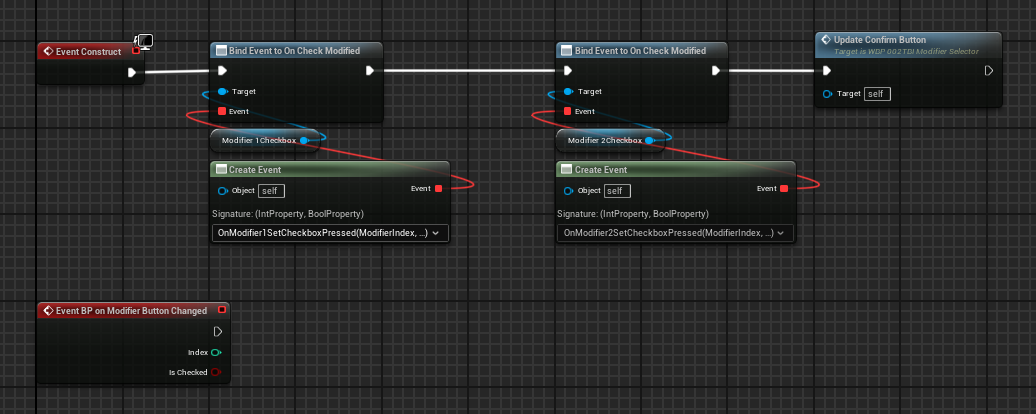
- In the "UpdateConfirmButton" function we are managing when the ConfirmButton availability.
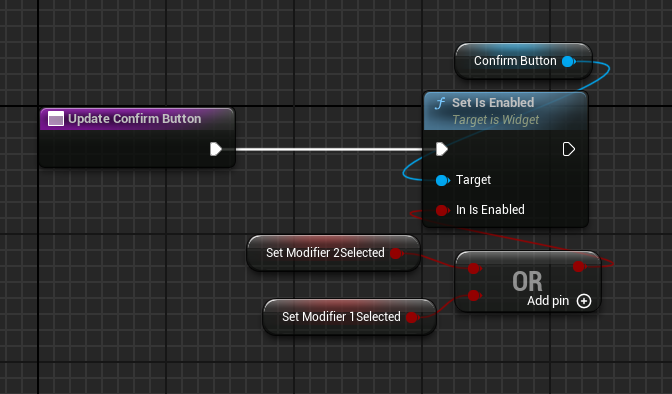
- In the "BP_GetModifierNotebookKey" you must set the Modifier name keys created in the "CustomKeys" Macro Library, and asociate to his index.
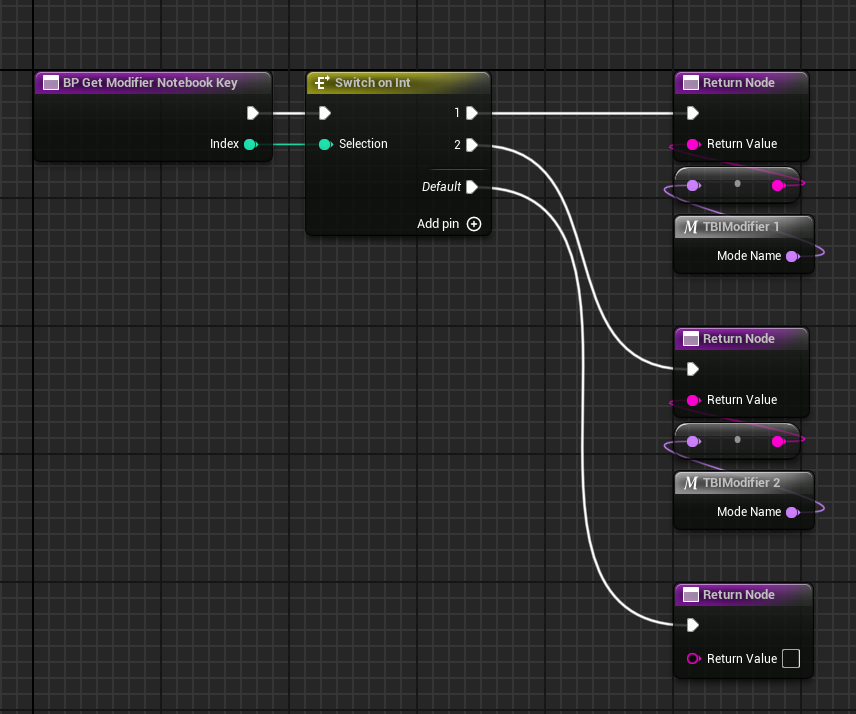
-
To finish, open the StartGame main Widget and add the Modifier widget to the widget switcher, this widget is placed between the Mode Selectors and the Seat selector.
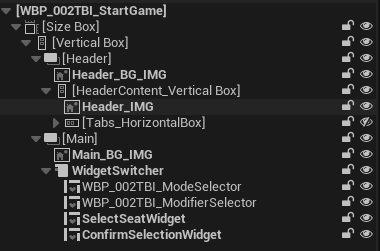
-
You can add as much modifier widgets as you wish.